
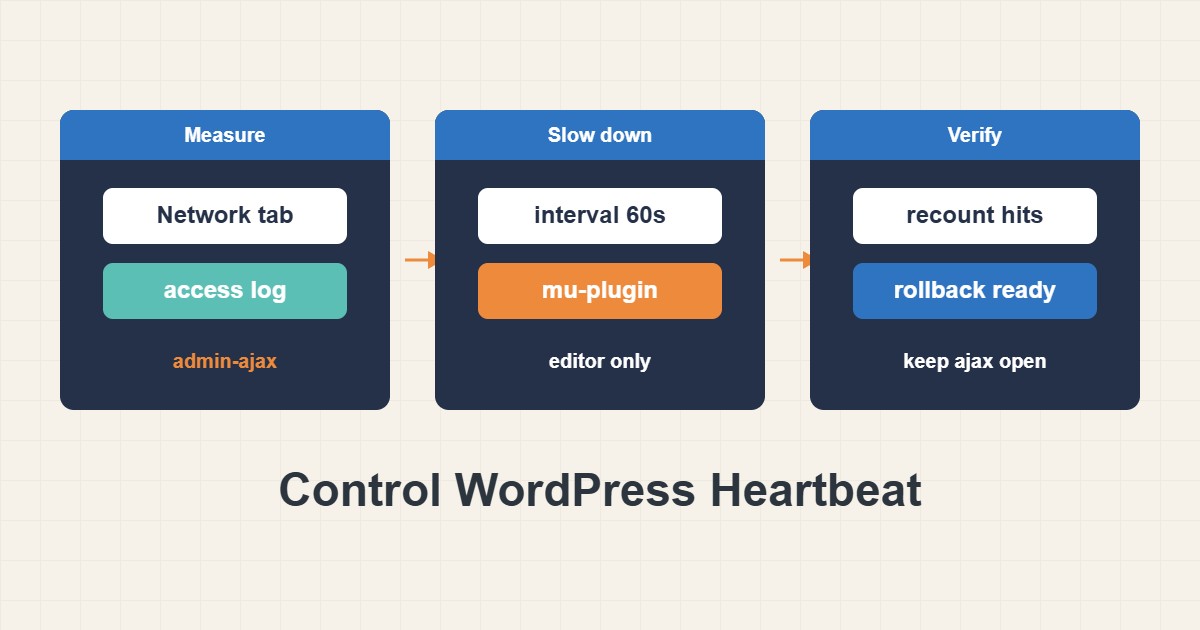
Every open WordPress dashboard tab quietly sends requests to admin-ajax.php, and on a small hosting plan those requests can add up to real CPU use. Most of them come from the Heartbeat API, a built-in feature that keeps the editor, post locking and session checks alive. It is useful, but it is also a request that always bypasses your page cache. This guide shows how to measure the load first, slow Heartbeat down or stop it where it is not needed, and avoid the common mistake of blocking admin-ajax.php itself, which breaks forms and carts.
1. What Heartbeat actually does
Heartbeat is a small piece of JavaScript that sends a POST request to /wp-admin/admin-ajax.php with action=heartbeat at a regular interval. WordPress uses it for post locking (so two editors do not overwrite each other), autosave in the editor, and the notice that your login session has expired. Some plugins also attach their own data to it, for example live order counts. Typical intervals are shorter in the post editor and longer elsewhere in the dashboard, and the browser slows it down when the tab is in the background. Defaults can change between versions, so treat the numbers you see in your own browser as the truth.
The important part for performance is that each beat is a full PHP request that loads WordPress. It is a POST, so a page cache will not answer it. One tab is harmless, but many tabs left open for hours on a shared plan are not, and this is one common contributor to limits such as the ones described in Fix cPanel 508 Resource Limit Reached Errors.
2. Measure before you change anything
Open the browser developer tools, go to the Network tab, filter by admin-ajax and watch for a minute. Click a request and read the payload: action=heartbeat means Heartbeat, anything else is a plugin or theme calling the endpoint. Then count what the server really sees:
# Log paths differ by host; adjust access.log (combined format assumed)
grep -c 'POST /wp-admin/admin-ajax.php' access.log
grep 'POST /wp-admin/admin-ajax.php' access.log | awk '{print $1}' | sort | uniq -c | sort -rn | head
The first command counts the requests in the log file, and the second shows which addresses send the most. If a handful of your own office addresses dominate, Heartbeat from open tabs is the likely cause. If a single unknown address dominates, that is abuse and a different problem. Save the count and the time window as your baseline, because without it you cannot say later whether the change helped.
3. Find what else calls admin-ajax.php
Heartbeat is not the only caller. Contact forms, cart fragments, search suggestions, page builders and some analytics plugins also use admin-ajax.php, on the public site too. Compare the action= values in the Network tab while you browse the front end as a visitor. A plugin that polls the endpoint every few seconds is a better target than Heartbeat. A profiler such as Query Monitor can help you see which plugin handles a given request, as covered in Reduce WordPress TTFB: Page Cache, OPcache and Slow Plugins.
4. Slow the interval down
The gentlest change is to lengthen the interval so tabs call home less often. Put it in a must-use plugin instead of the theme, so it survives a theme change:
<?php
// wp-content/mu-plugins/heartbeat-interval.php
add_filter('heartbeat_settings', function ($settings) {
    $settings['interval'] = 60; // seconds; the allowed range is roughly 15 to 120
    return $settings;
});
Create the file in wp-content/mu-plugins/, reload the dashboard and check the Network tab again. The editor keeps working, only less often, so locking and autosave react a little more slowly. Start with 60 seconds and do not go to the maximum unless you have a reason, because very long intervals make the locking warning arrive late.
5. Stop Heartbeat outside the editor
If dashboard tabs are the problem, you can keep Heartbeat only on the screens that need it. This pattern removes the script everywhere except the post editor:
<?php
// wp-content/mu-plugins/heartbeat-editor-only.php
add_action('init', function () {
    global $pagenow;
    $is_editor = in_array($pagenow, array('post.php', 'post-new.php'), true);
    if (!$is_editor) {
        wp_deregister_script('heartbeat');
    }
}, 1);
Before you use it, know what you give up. Outside the editor, the “session expired” login prompt will not appear, and plugins that refresh data live, such as some order or stats widgets, may stop updating until you reload. Post locking still works because it only matters in the editor. Test on a staging copy first, and keep the previous interval filter if you are unsure. The same file is easy to remove, which is your rollback.
6. Do not block admin-ajax.php
It is tempting to deny the file in the web server or the firewall. Do not. The public site uses it for form submissions, cart updates and many plugin features, and blocking it fails silently for visitors. If one address is abusing it, rate limit or block that address, as in Harden WordPress Login: Rate Limits, XML-RPC and Two-Factor, and leave the endpoint open. Your robots.txt may still allow the path for the same reason.
7. Verify the result and keep a way back
After 24 hours, run the same count on the same kind of log window and compare it with your baseline. Open the dashboard in two tabs, edit a post and confirm that the editor still saves and shows the lock notice. If anything misbehaves, remove the file:
# Rollback: remove the file you added, then confirm it is gone
rm wp-content/mu-plugins/heartbeat-editor-only.php
ls wp-content/mu-plugins/
Because the change lives in one separate file, nothing else is touched. Keep a note of the date, the old count and the new count.
8. A worked example
This example is illustrative, not a measurement of a real site. Imagine ten editors who each leave one dashboard tab open all day. At one request per minute that is 10 × 1,440 = 14,400 requests per day to a PHP endpoint that your cache cannot serve. Stopping Heartbeat outside the editor removes most of them, while the editor tabs keep working. Whether that matters depends on your plan: on a small shared account it can be visible, on a large dedicated server it may be noise. That is why you measure first.
9. Common mistakes
- Disabling Heartbeat everywhere, including the editor, and then losing post locking.
- Blocking
admin-ajax.phpin the firewall and breaking forms or carts. - Putting the code in the theme’s
functions.phpso it disappears after a theme update. - Changing the setting without a baseline, so you cannot tell whether it helped.
- Assuming Heartbeat is the cause when another plugin polls the endpoint far more often.
10. Frequently asked questions
Does the front end send Heartbeat? Not by default, but a theme or plugin can load it. The Network tab on a public page will tell you.
Is a Heartbeat plugin better than code? Some performance plugins include a Heartbeat control and that is fine. The result is the same; the code is just easier to review and remove.
Will this hurt SEO? No. Heartbeat is a dashboard feature, and visitors and search engines do not trigger it.
Do I need to activate the file? No. Files in mu-plugins load automatically, so there is no switch to flip. For the same reason, a syntax error in one can break the whole site, so check it with php -l file.php before you upload it.
Will a CDN or firewall cache these requests? Normally not, because they are POST requests. Some firewalls can still count them against a rate limit, so check your rules if admins get blocked.
What if a plugin stops refreshing live data? Restore Heartbeat on that screen or remove the file, then ask the plugin author whether it supports a longer interval.
11. Quick checklist
- Record the number of
admin-ajax.phpPOST requests as a baseline. - Check the
action=values to see who calls the endpoint. - Lengthen the interval first, in a must-use plugin.
- Stop Heartbeat outside the editor only if tabs are the problem.
- Never block
admin-ajax.phpfor everyone. - Recount after a day and keep the rollback file path in your notes.
If you need help reviewing performance or maintaining a server, see the server management services.
More server and WordPress guides are collected in the article archive.
Official references
WordPress: Heartbeat API · Hook: heartbeat_settings · WordPress: AJAX in plugins · Must-use plugins