
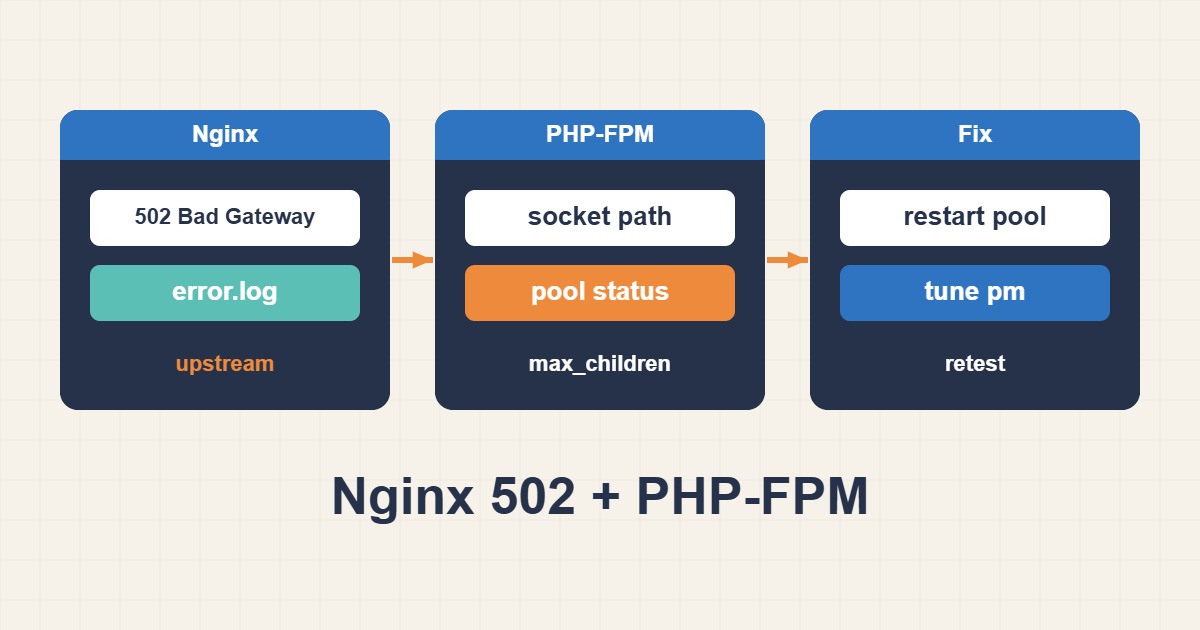
A 502 Bad Gateway response from Nginx means the proxy or FastCGI gateway could not obtain a valid response from its upstream service. In a typical PHP website, Nginx is healthy enough to accept the browser request, but communication with PHP-FPM fails. Restarting everything may restore service temporarily, yet it does not explain why the failure occurred or prevent it from returning.
This guide presents a production-focused workflow for separating socket problems, service crashes, exhausted PHP-FPM pools, timeouts, permissions, and application failures.
What a 502 response tells you
Nginx can serve static files without PHP-FPM. If images and HTML files load while every PHP URL returns 502, the failure is almost certainly on the FastCGI path. If only one application or virtual host fails, compare its upstream configuration and pool with a working site. If the error is intermittent, look for capacity limits, worker crashes, deployments, and resource pressure rather than a permanently incorrect socket.
Start with the Nginx error log
Do not begin by increasing timeouts. Reproduce one failed request and immediately inspect the relevant log:
sudo tail -n 100 /var/log/nginx/error.log
sudo journalctl -u nginx --since "10 minutes ago"
Common messages provide a direct starting point:
connect() to unix:/... failed (2: No such file or directory): the configured socket path does not exist.connect() failed (111: Connection refused): PHP-FPM is stopped, restarting, or not listening on the configured TCP port.connect() failed (13: Permission denied): Nginx cannot access the Unix socket.upstream prematurely closed connection: a PHP worker exited, crashed, was killed, or terminated before returning a complete response.upstream timed out: the upstream did not respond before the configured timeout; investigate the application and dependencies before raising the limit.
Verify that PHP-FPM is running
Service names vary by distribution and PHP version:
systemctl status php-fpm
systemctl status php8.2-fpm
journalctl -u php8.2-fpm --since "30 minutes ago"
If the unit is failed, the journal often reveals invalid pool configuration, missing directories, extension crashes, or an out-of-memory termination. Validate configuration before restarting:
php-fpm -t
php-fpm8.2 -t
sudo systemctl restart php8.2-fpm
A restart is appropriate after collecting evidence. Repeated automatic restarts without investigating memory, worker limits, or application faults can turn an outage into an intermittent problem that is harder to diagnose.
Confirm that Nginx and PHP-FPM use the same endpoint
Find the effective FastCGI destination in the Nginx configuration:
sudo nginx -T | grep -n "fastcgi_pass"
grep -R "^listen" /etc/php/*/fpm/pool.d/
Typical configurations use either a Unix socket:
fastcgi_pass unix:/run/php/php8.2-fpm.sock;or a TCP listener:
fastcgi_pass 127.0.0.1:9000;The two sides must match exactly. Version upgrades commonly leave Nginx pointing to an old socket such as php8.1-fpm.sock while the active service creates php8.2-fpm.sock. Use ss -ltnp for TCP listeners and ss -lxnp for Unix sockets.
Check Unix socket ownership and permissions
The PHP-FPM pool controls the socket owner, group, and mode through settings such as listen.owner, listen.group, and listen.mode. Nginx must have permission to connect, but making the socket world-writable is not a safe fix.
namei -l /run/php/php8.2-fpm.sock
ps -o user,group,cmd -C nginx
ls -l /run/php/
Check permissions on every parent directory, not only the socket. Align the socket group with the Nginx worker group and use the least privilege required. After changing a pool configuration, restart PHP-FPM and confirm that the recreated socket has the intended ownership.
Look for exhausted PHP-FPM pools
Intermittent 502 errors during traffic spikes can occur when workers are saturated or terminated. Inspect the PHP-FPM log for messages indicating that pm.max_children has been reached. Also examine current memory and process counts:
ps --no-headers -o rss -C php-fpm8.2 | awk '{sum+=$1; n++} END {print n, sum/1024 " MB"}'
free -m
vmstat 1 5
journalctl -k | grep -i -E "out of memory|killed process"
Do not increase pm.max_children blindly. Estimate the average resident memory of a PHP worker and preserve memory for the operating system, database, web server, cache, and monitoring agents. If the kernel OOM killer terminates PHP-FPM or MySQL, adding workers will make the incident worse.
If the kernel log contains Out of memory or Killed process events, follow the guide to troubleshoot Linux OOM Killer and high memory usage before increasing PHP-FPM worker limits.
Separate slow requests from unavailable upstreams
A slow PHP request can eventually produce a 504 or an upstream timeout, while a dead or unreachable FastCGI endpoint more commonly produces 502. Nevertheless, applications can terminate connections or hit execution limits in ways that surface as 502.
Correlate these values:
- Nginx
fastcgi_connect_timeout,fastcgi_send_timeout, andfastcgi_read_timeout; - PHP
max_execution_time; - PHP-FPM
request_terminate_timeout; - database and external API timeouts.
Increasing fastcgi_read_timeout is justified only when the request is expected to run longer and the server has enough capacity. For web requests that routinely take minutes, move the work to a background queue instead of holding Nginx and PHP workers open.
Enable evidence for the next incident
For difficult intermittent failures, enable the PHP-FPM slow log in the relevant pool:
request_slowlog_timeout = 5s
slowlog = /var/log/php-fpm/site-slow.log
Use a conservative threshold and protect log files from uncontrolled growth. A PHP-FPM status endpoint, restricted to localhost or a monitoring network, can expose active and idle processes, queue depth, and maximum active workers. Combine it with Nginx request timing, system memory, CPU, and database metrics.
WordPress-specific checks
If the infrastructure is healthy but one WordPress request causes workers to exit or stall, inspect the PHP error log and WordPress debug log in a controlled maintenance window. Disable a suspected plugin only after taking a backup and confirming the failure correlation. Check object-cache connectivity, database latency, loopback HTTP calls, and scheduled tasks. A plugin timeout is an application symptom; it should not be treated as proof that Nginx needs a larger timeout.
A safe recovery sequence
- Record the timestamp, affected host, URL, and Nginx error.
- Check PHP-FPM service state and journal.
- Confirm that the configured socket or port exists and matches both services.
- Check socket permissions and parent-directory access.
- Inspect memory pressure, worker counts, and OOM events.
- Validate configuration with
nginx -tand the PHP-FPM test command. - Restart only the failed component, then verify both a static and PHP URL.
- Monitor logs and pool saturation after recovery.
If access logs show that repeated requests to Login or API endpoints are exhausting PHP-FPM workers, follow the guide to configure Nginx rate limiting for login and API abuse before simply increasing worker limits.
Conclusion
An Nginx 502 with PHP-FPM is not a single error with a single fix. The fastest reliable diagnosis comes from the exact Nginx error message, PHP-FPM journal, endpoint matching, socket permissions, and resource evidence. Adjust capacity or timeouts only after identifying the constraint.
Reference: Nginx upstream module documentation.