
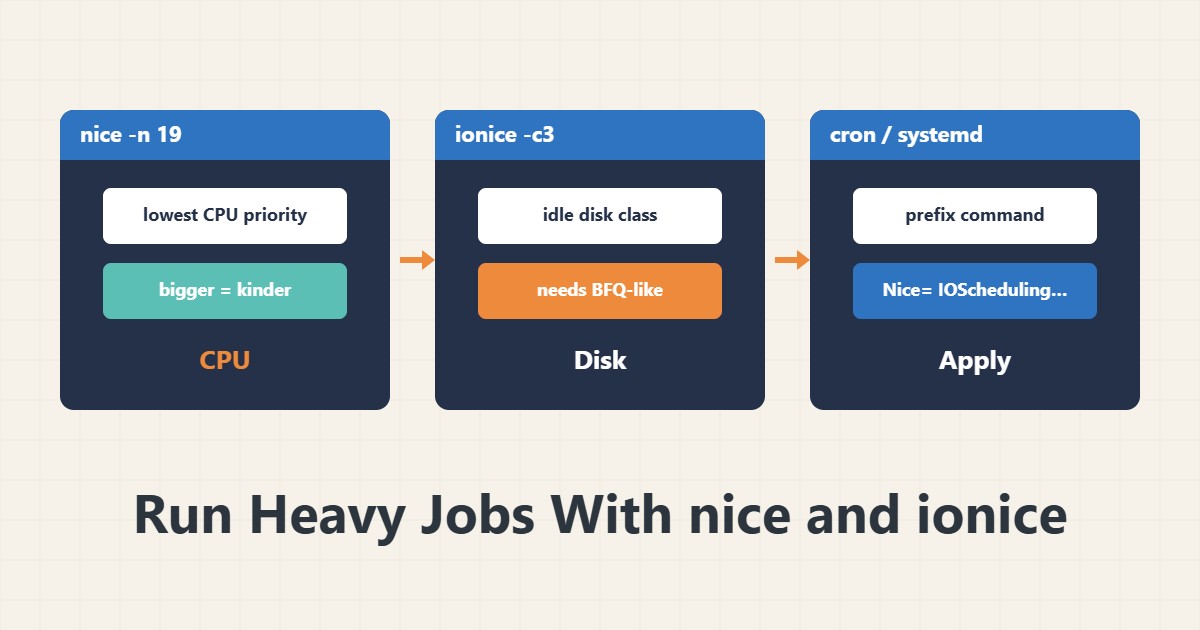
Backups, compression or indexing can slow a site during busy hours because they compete for CPU and disk. Two simple tools help: nice for the processor and ionice for the disk. They are not magic, but in many cases they are enough.
1. nice for the CPU
nice -n 19 tar czf /backup/site.tgz /var/www/siteThe nice value runs from -20 to 19, and a higher number means kinder to others, so lower priority. 19 is the lowest priority. A normal user can only lower priority, not raise it.
2. ionice for the disk
ionice -c3 tar czf /backup/site.tgz /var/www/site
ionice -c2 -n7 rsync -a /var/www/ /backup/www/
Class 3 means idle and runs only when the disk is idle. Class 2 with level 7 is the lowest priority in the normal class. It matters to know that ionice only works with a disk scheduler that supports priorities, such as BFQ, and has little effect with some schedulers.
3. Combine both
nice -n 19 ionice -c3 /usr/local/bin/backup.shThis combination is common for backup scripts. In cron, write it directly before the command. For safe scheduling see the cron guide and for incremental copying see rsync.
4. Change a running process
renice -n 10 -p 12345
ionice -c3 -p 12345
If a job has already started, change its priority by process ID. Find the ID with ps or pgrep. The change lasts for that run.
5. In systemd
[Service]
Nice=19
IOSchedulingClass=idle
For services, put the same values in the unit file so they apply every time. If you need a hard cap, systemd resource limits and cgroups are stronger than nice. See the systemd guide for service management.
6. Illustrative example, not a measurement
Suppose a nightly backup at 2 a.m. slowed the site every night. Adding nice and ionice before the tar command made the site’s response time fluctuate less during that hour. The backup took a little longer, but users felt the effect less. This scenario is an invented illustration, not a measurement.
7. Common mistakes
- Assuming nice replaces a hard resource limit.
- Ignoring that ionice depends on the disk scheduler.
- Not knowing that a larger nice value means lower priority.
- Running a heavy job at peak hours with no limit at all.
8. Frequently asked questions
Can nice go below zero? Only with root privileges.
Does ionice work on every server? Only with a disk scheduler that understands priorities.
Will the backup get slower? Yes; the goal is to stop the site from slowing down.
9. Quick checklist
- CPU priority was lowered with nice.
- Disk class was set with ionice.
- It was applied in cron or systemd.
- The effect on the site was checked.
- The ionice limitation was considered.
If you need help reviewing performance or maintaining a server, see the server management services.
More server and WordPress guides are collected in the article archive.
Official references
nice manual page · ionice manual page · systemd.exec manual page