
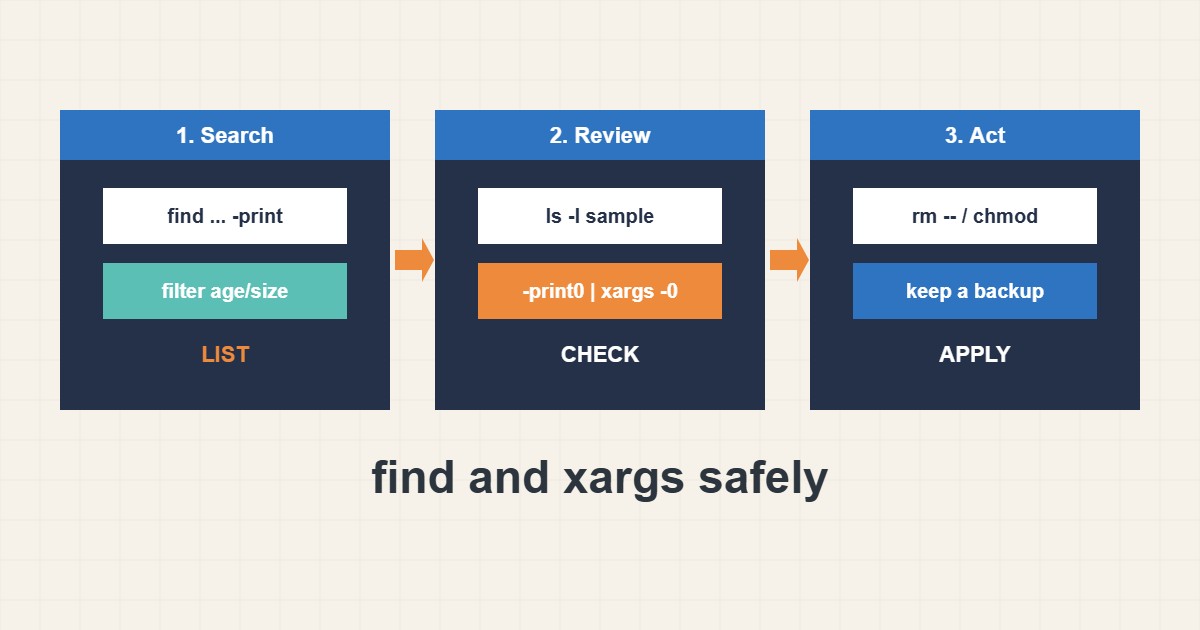
find and xargs are among the most useful and most dangerous Linux tools. A small mistake can delete the wrong files or fail on names with spaces. This guide shows a safe routine: search first, review the list, then act with null-separated names. Commands follow the GNU documentation; I did not run them on your server, so try them on a test folder first.
1. Search and filter first
Start with -print only. Filter by type, name, age, size and permissions, and check the list before any action:
find /var/www -type f -name '*.log' -mtime +14 -size +10M -print
find /var/www -type f -perm /o+w -print         # world-writable files
find . -type d -empty -print
Narrow the starting folder as much as you can, and never start a destructive command from /.
2. Use null separators
File names can contain spaces or newlines. -print0 with xargs -0 handles every name safely. Review with ls -l first, then run the real command:
find /var/www -name '*.tmp' -type f -mtime +7 -print0 | xargs -0 -r ls -l   # review first
find /var/www -name '*.tmp' -type f -mtime +7 -print0 | xargs -0 -r rm --        # then delete
-r stops xargs from running when there is no input, and -- protects names that start with a dash.
3. Batch and parallelize carefully
find can run a command itself with -exec ... {} +, which batches files. xargs adds parallelism with -P. Use parallel jobs only for read-only or independent work:
find /var/www -type f -name '*.php' -print0 | xargs -0 -r -P 4 -n 50 grep -l 'eval('
find . -type f -exec chmod 644 {} +      # + batches many files per call
For permission problems on web folders see the PHP guide and use least privilege.
4. Mistakes to avoid
These patterns are the classic accidents:
find / -name '*.log' | xargs rm          # breaks on spaces, may hit system files
rm $(find . -name '*.tmp')             # word splitting on spaces/newlines
Always test with a harmless command such as ls or echo before replacing it with rm, and keep backups, as in the rsync backup guide.
5. Illustrative example, not a measurement
Imagine a site folder (made-up) with thousands of old temporary files. The admin lists files older than seven days with -print, reviews a sample with ls -l, and only then removes them with print0 and xargs -0. Names with spaces are handled correctly and no system file is touched.
6. Common mistakes
- Running a delete without reviewing the list.
- Piping find to xargs without -print0 and -0.
- Starting from / or a wide folder.
- Forgetting -type f.
- Using parallel jobs for dependent work.
- Having no backup.
7. Frequently asked questions
Why use -print0? It separates names with a null character, which cannot appear in a file name.
What does -exec {} + do? It passes many files to one command call, which is faster than one call per file.
Is -delete safe? It is handy, but test the same find with -print first.
Can find search by owner? Yes, with -user and -group.
8. Quick checklist
- Run find with -print first.
- Restrict the start folder.
- Filter by type, age and size.
- Use -print0 with xargs -0.
- Preview with ls -l.
- Run the real action.
- Keep a backup.
If you need help reviewing performance or maintaining a server, see the server management services.
More server and WordPress guides are collected in the article archive.
Official references
GNU findutils: find manual · xargs(1) manual · find(1) manual · GNU: Safe file name handling