
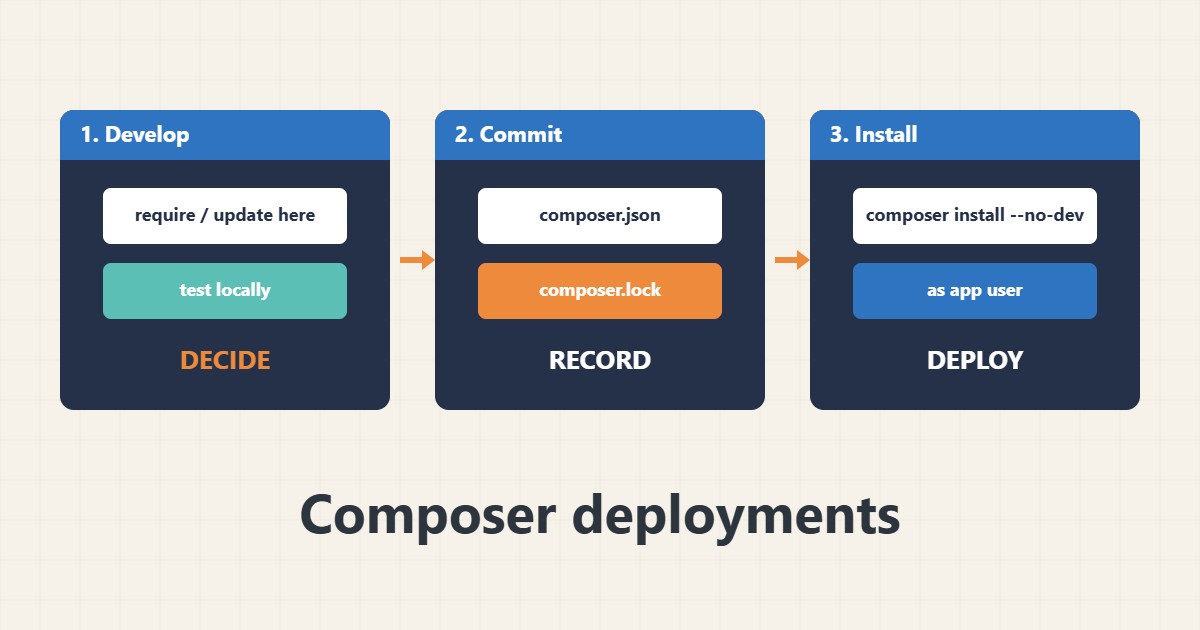
Composer manages the PHP libraries a project needs. Problems usually appear on the server: a different PHP version, a missing lock file, development packages in production or files owned by root. The safe pattern is simple: decide versions on a development machine, commit the lock file and let the server install exactly that. Commands follow the Composer documentation; I did not run them on your server, and some shared hosts limit shell access.
1. Check PHP and Composer first
Composer works with the PHP version the command line uses, which can differ from the web PHP version:
php -v
composer --version
composer validate
composer diagnose
See the PHP version guide and the PHP-FPM guide for how web PHP is chosen.
2. Decide versions on a dev machine
Add and update packages where you can test, then commit both files so the server can reproduce the result:
# Development machine: add or update, then commit composer.json AND composer.lock
composer require monolog/monolog:^3.0
composer update monolog/monolog --with-dependencies
git add composer.json composer.lock
Version constraints in composer.json say what is allowed; the lock file records what was tested.
3. Install on the server from the lock file
On the server use install, not update. Skip development packages and optimize the autoloader:
# Server: install exactly what the lock file says
cd /var/www/example
composer install --no-dev --prefer-dist --optimize-autoloader --no-interaction
composer show --installed | head
Run it as the application user, not root. Back up before deploying; see the backup guide.
4. Audit and verify
Check for known vulnerabilities and confirm the application loads:
composer audit
composer outdated --direct
php -r 'require "vendor/autoload.php"; echo "autoload ok\n";'
If something fails after a deploy, read the error log; see the journalctl guide for service logs.
5. Mistakes to avoid
These habits make deployments unpredictable:
composer update on the production server    # installs versions nobody tested
Running composer as root                    # creates root-owned files
vendor/ folder served from the web root     # exposes library code and files
No composer.lock in git                     # every deploy can differ
Keep the vendor folder outside the public web root when your framework allows it.
6. Illustrative example, not a measurement
Imagine a small PHP application (made-up) that works locally but breaks on the server after a deploy. The server ran composer update and pulled a newer library version that needs a newer PHP. After committing composer.lock and switching the deploy to composer install, the server installs exactly the tested versions.
7. Common mistakes
- Running composer update in production.
- Not committing composer.lock.
- Using the wrong PHP CLI version.
- Running Composer as root.
- Installing dev packages on the server.
- Exposing vendor in the web root.
8. Frequently asked questions
install or update? Use update on a dev machine and install on the server.
Do I commit vendor? Usually not; commit composer.json and composer.lock.
What does –no-dev do? It skips packages listed under require-dev.
Can I use Composer on shared hosting? Only if the host gives shell access or a deploy tool.
9. Quick checklist
- Check the PHP CLI version.
- Update on a dev machine.
- Commit the lock file.
- Use composer install on the server.
- Use –no-dev.
- Run composer audit.
- Test the application.
If you need help reviewing performance or maintaining a server, see the server management services.
More server and WordPress guides are collected in the article archive.
Official references
Composer: Basic usage · Composer: install command · Composer: composer.lock · Composer: Autoloader optimization