
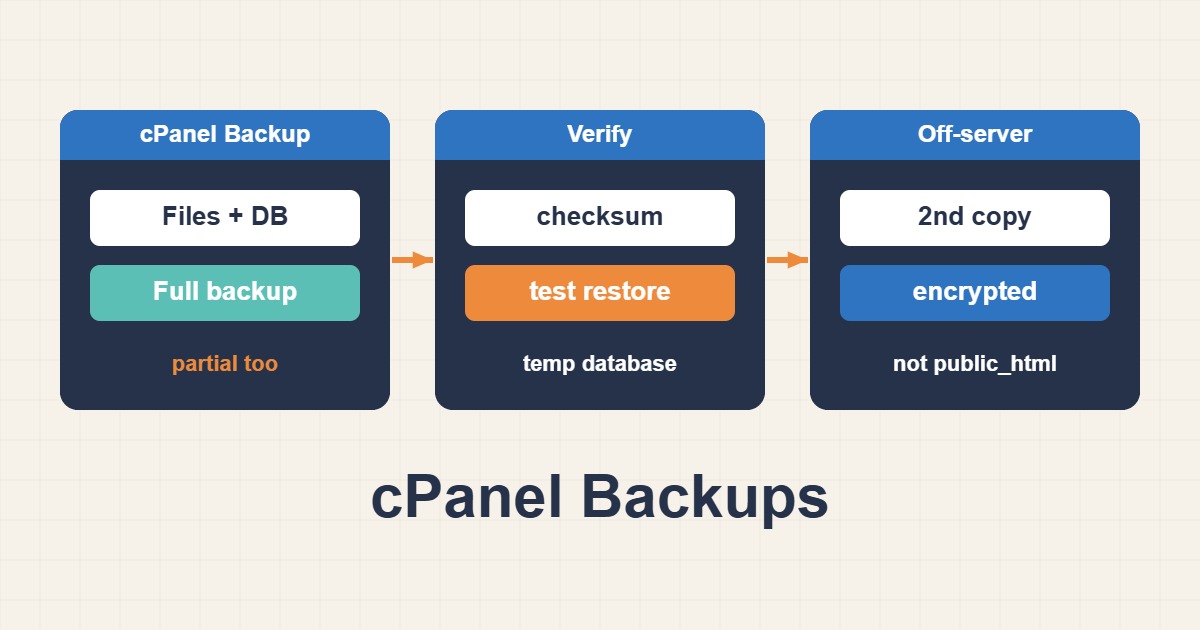
Most hosting plans advertise backups, and most owners assume the matter is closed until the day they need to restore. Then they find that the host’s copy is a week old, that it covers only files, or that only support can restore it. This guide shows what cPanel can back up, how to make your own full and partial backups, how to check that they work, where to keep them and how to restore a WordPress site safely. Menu names and features differ between hosts, and some providers disable backup tools in cPanel, so confirm what your plan allows.
1. Host backups and your own backups
A host’s automatic backup is a convenience, not a guarantee. Ask three questions: how often is it taken, how long is it kept, and who can restore it and how fast. Your own backups answer those questions with certainty. The usual advice is to keep several copies on different systems, and A Practical 3-2-1 Backup Strategy for WordPress and Web Servers explains the 3-2-1 idea in detail.
2. What a cPanel backup contains
A full account backup is an archive of the account’s home directory, databases, email settings and similar data. A partial backup contains one piece, such as the home directory, one database, or the email forwarders and filters. For a WordPress site the two pieces that matter are the site files and the database. Email data may be large and needs its own decision.
3. Create a full backup in cPanel
In cPanel open Backup, then use the option to download a full account backup. You can choose where the archive goes: the home directory, or a remote destination such as FTP or SCP, and you can ask for an email notification. When the job finishes, the archive appears in the home directory with a dated name. Remember that this file uses your disk quota, so download it and move it, and do not leave several of them accumulating on the server.
4. Create partial backups
The same Backup page lets you download the home directory and each database separately, which is useful when you only need to protect one thing. If you prefer the command line, and your plan allows SSH or a terminal, you can create your own archives:
mkdir -p ~/backups
tar -czf ~/backups/site-$(date +%F).tar.gz \
  --exclude='wp-content/cache' --exclude='wp-content/upgrade' \
  -C ~/public_html .
wp db export ~/backups/db-$(date +%F).sql --path="$HOME/public_html"
gzip ~/backups/db-$(date +%F).sqlThe exclusions keep caches out of the archive, which makes it smaller and the restore cleaner. Store the files in a folder outside the public web root.
5. Never leave backups in public_html
A backup in the web directory can be downloaded by anyone who guesses its name, and it contains database passwords in wp-config.php and all your content. Keep archives in a folder above or outside the public directory, and delete test downloads as soon as they have served their purpose. Attackers actively scan for common backup file names.
6. Verify every backup
A backup is proven only when it has been read back. At a minimum, record checksums, list the archive and test the compressed database file:
cd ~/backups
sha256sum site-2026-10-14.tar.gz db-2026-10-14.sql.gz > checksums.sha256
sha256sum -c checksums.sha256
tar tzf site-2026-10-14.tar.gz | head
gzip -t db-2026-10-14.sql.gz
Better still, restore a database into a temporary database and open the site on a test subdomain. A routine restore test turns a hope into a procedure.
7. Keep a copy off the server
A backup that lives on the same server disappears with the account if the account is suspended, hacked or deleted. Download copies to your computer, or send them to separate storage such as an object storage service or another hosting account. Encrypt archives that contain personal data before they leave the server, and keep access to the backup location separate from access to the website.
8. Restore: know who can do what
In many setups you can restore partial backups yourself from the Backup page, by uploading the home directory or database archive. A full-account restore usually requires the host’s administrators, so ask support how long it takes before you need it. For WordPress, restoring files plus the database is typically enough, and you do not need a full account restore.
9. Restore the database carefully
On cPanel, database and user names carry the account prefix, so a dump from another account may not match. Create the database and user first, grant privileges, then import the dump. The password prompt keeps the secret out of your shell history:
gunzip -c db-2026-10-14.sql.gz | mysql -u cpuser_wpuser -p cpuser_wpdbMake sure the connection values in wp-config.php match what you created:
define( 'DB_NAME', 'cpuser_wpdb' );
define( 'DB_USER', 'cpuser_wpuser' );
define( 'DB_HOST', 'localhost' );
$table_prefix = 'wp_';
Also check that the table prefix in the dump matches $table_prefix, or WordPress will behave as if it were a new install.
10. After the restore
Check file permissions, reset permalinks if needed, clear any page cache and test the important paths: front page, an article, login, a form and, for a shop, an order. If the site moved to a new domain or path, the stored URLs must be updated, and Migrate WordPress URLs Safely with WP-CLI Search-Replace explains a safe way. If you restored because the site was compromised, make sure the backup is from before the infection, and read Clean a Hacked WordPress Site: Malware and Backdoors before reopening it.
11. Automate your own backups
You can schedule a small script from Cron Jobs in cPanel. This example writes dated archives and lists, rather than deletes, files older than seven days so you can review them first:
#!/bin/bash
set -euo pipefail
D="$HOME/backups"; mkdir -p "$D"
tar -czf "$D/site-$(date +%F).tar.gz" --exclude='wp-content/cache' -C "$HOME/public_html" .
wp db export - --path="$HOME/public_html" | gzip > "$D/db-$(date +%F).sql.gz"
find "$D" -name 'site-*.tar.gz' -mtime +7 -print
Schedule it for a quiet hour:
15 2 * * * /bin/bash $HOME/bin/backup.sh >/dev/null 2>&1When you are happy with what the listing shows, you can switch the final command to delete. Watch your disk quota, since backups pile up quickly, and test that the cron job really ran by checking the files the next morning.
12. Plugins and point-in-time recovery
A backup plugin can handle schedules and remote storage, but it runs inside PHP, so it can hit time and memory limits on shared hosting and fail silently. Check its logs and still test restores. If you need to recover to an exact moment, such as just before a bad import, file-and-dump backups are not enough, and MySQL Point-in-Time Recovery with Binary Logs describes a database-level approach where it is available.
13. Common mistakes
- Trusting the host’s backup without asking its schedule and retention.
- Leaving archives in
public_html. - Keeping all copies on the same server.
- Never testing a restore.
- Restoring a dump with the wrong table prefix or database user.
- Putting passwords on the command line or in shared scripts.
14. A worked example
A small business site runs a nightly script that creates a files archive and a compressed database dump, then copies both to separate storage. Once a month the owner restores the latest pair into a test subdomain and opens the site. The first test reveals a wrong database user in the new configuration, which is fixed and documented. This is an illustration of a routine, not a measurement from a real site.
15. Quick checklist
- Find out what your host backs up, how often and who restores it.
- Make a full or partial backup of files and the database.
- Keep archives outside
public_htmland copy them off the server. - Verify checksums and test the database file.
- Restore into a test location and check the site.
- Automate the routine and repeat the restore test regularly.
More server guides are collected in the article archive.
Official references
cPanel: Backup · cPanel: Backup Wizard · WordPress: Backups · WP-CLI: wp db export