
Nginx access logs are the kind of thing nobody thinks about until the disk alerts go off. Then it’s the same little mystery every time: logrotate says it ran, the old files are compressed and neatly numbered, and yet df still shows the volume full. Or the opposite, where rotation silently never happens and one access.log keeps growing for months.
Both problems come down to the same two ideas. Logrotate has to run on schedule with the right permissions, and Nginx has to be told to reopen its log files afterwards. This guide covers the configuration, how to debug it, and how to recover space when a deleted log is still held open.
1. How rotation is supposed to work
A running Nginx process keeps its log files open by file handle, not by name. When logrotate renames access.log to access.log.1, Nginx keeps writing into that renamed file, because it never looked up the name again. Nothing creates a fresh access.log until Nginx is told to reopen its logs, which is done with a signal:
sudo nginx -s reopen
# or, equivalently
sudo kill -USR1 $(cat /run/nginx.pid)
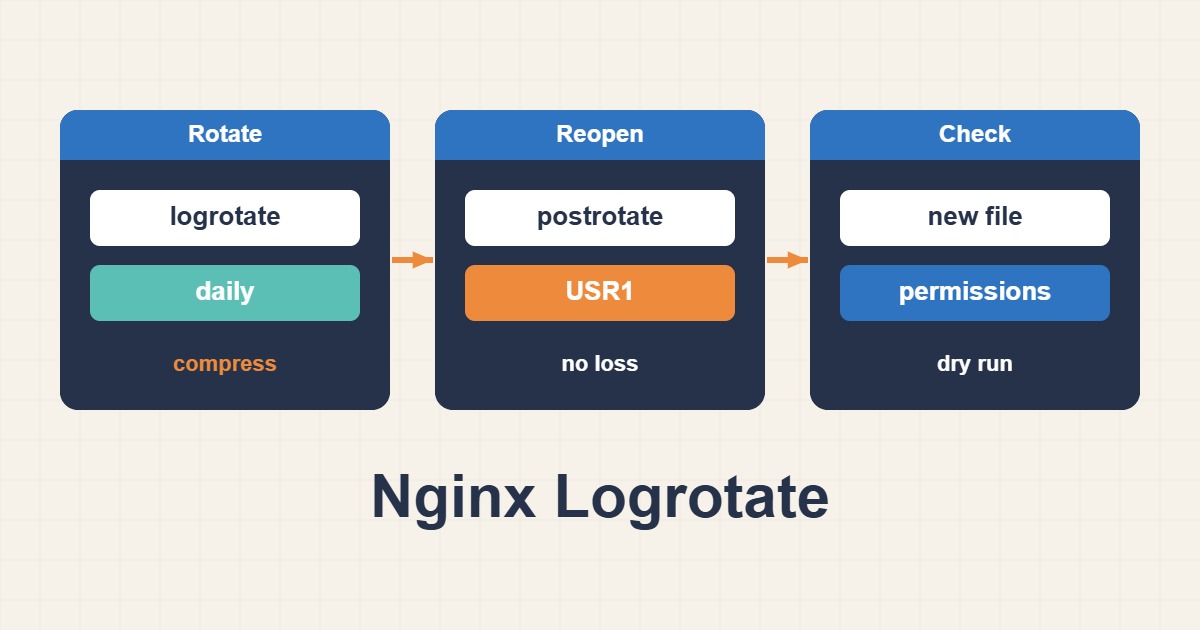
So a correct rotation has three parts: rename the file, create a new empty one with the right owner, and send the reopen signal. Skip the signal and you get exactly the symptoms above.
2. A reliable logrotate configuration
On Debian and Ubuntu the package installs /etc/logrotate.d/nginx. Look at yours first, because distributions differ and a customised server may have drifted. A solid version looks like this:
/var/log/nginx/*.log {
    daily
    rotate 14
    missingok
    notifempty
    compress
    delaycompress
    dateext
    sharedscripts
    create 0640 www-data adm
    postrotate
        [ -s /run/nginx.pid ] && kill -USR1 $(cat /run/nginx.pid)
    endscript
}
A few of these lines deserve a sentence each:
delaycompressleaves yesterday’s file uncompressed for one more cycle. Nginx can still write a few lines into the old file just after the signal, and compressing it immediately could lose them.sharedscriptsruns the postrotate block once for the whole glob, not once per log file. Without it a server with ten virtual-host logs signals Nginx ten times.create 0640 www-data admhas to match the user your distribution expects. On RHEL-family systems that’s usuallynginxas the owner, and the log path is the same. Check withls -l /var/log/nginx.notifemptyandmissingokkeep quiet sites and absent files from producing errors.
If your vhosts log somewhere else, such as /var/www/*/logs/*.log, add that path to the first line. Several globs can share one block.
3. Why not copytruncate
You’ll see copytruncate recommended as a shortcut because it avoids the signal. It copies the log and then truncates the original in place. That works, but there is a window between copy and truncate where lines are lost, and on a busy site the copy itself causes a burst of disk I/O. For Nginx, which handles the reopen signal cleanly, there’s no good reason to accept either drawback. Use the signal.
4. Check that rotation really runs
Don’t assume. Ask the system:
systemctl list-timers logrotate.timer
sudo systemctl status logrotate.service
sudo journalctl -u logrotate.service --since "2 days ago"
sudo grep nginx /var/lib/logrotate/status
The last command shows the date logrotate last rotated each Nginx log. On RHEL-family systems the state file is /var/lib/logrotate/logrotate.status. If the date is weeks old, either the timer isn’t running or the job is failing before it reaches your file.
5. Dry-run it, then force it
Logrotate has a debug mode that prints what it would do and changes nothing:
sudo logrotate -d /etc/logrotate.d/nginxRead the output for lines that say a log “does not need rotating” or that it was skipped. When it looks right, force a real run once and verify:
sudo logrotate -vf /etc/logrotate.d/nginx
ls -lh /var/log/nginx/
sudo ls -l /proc/$(cat /run/nginx.pid)/fd | grep log
You should see a new access.log with a small size and an old file with a date suffix. The /proc listing is the real test: the open handles should point at the new files, not at anything marked (deleted) or the rotated copy.
6. The common errors and what they mean
- skipping because parent directory has insecure permissions: logrotate refuses to rotate in a directory that a non-root group can write to. Fix the permissions, or add
su root adminside the block so the rotation runs as that user and group. - The disk is full but the files look small: a deleted file is still open. See the next section.
- Logs stay empty after rotation: the new file was created with an owner Nginx can’t write to, or the reopen signal never fired. Check the
createline and the PID file path. - Rotation never happens: check
systemctl list-timers, the state file and whether another config file already handles the same path. Two blocks for one log can conflict.
7. Recovering space held by a deleted log
If someone ran rm access.log to free space, the space isn’t released while Nginx still holds the file open. du won’t show it but df will. Find it and let go:
sudo lsof +L1 | grep nginx
sudo nginx -s reopen
The first command lists open files with a link count of zero. After nginx -s reopen, Nginx closes the old handle, the kernel frees the blocks and df catches up. Truncating with sudo truncate -s 0 /var/log/nginx/access.log is also an option when you need space immediately, though it throws away the log.
8. Make the logs smaller to begin with
Rotation manages growth, but it’s cheaper not to write what you won’t read. Turn off access logging for noisy health checks, and buffer writes on a busy server:
location = /healthz {
    access_log off;
    return 200;
}

access_log /var/log/nginx/access.log combined buffer=32k flush=5s;
Buffering reduces write calls, though a crash can lose up to the last few seconds of entries. Also remember that access logs contain client IP addresses, which count as personal data in many jurisdictions. Set a retention period that matches your policy rather than keeping files indefinitely.
9. Permissions and the su directive in logrotate
If the log directory is writable by group or others, logrotate refuses to rotate and asks you to name the rotating user with the su directive. On Ubuntu, Nginx logs normally belong to www-data and group adm, so this block is the safest form:
/var/log/nginx/*.log {
    su root adm
    create 0640 www-data adm
}
Check ownership first with ls -l /var/log/nginx/. A wrong owner or mode shows up after rotation as permission errors in monitoring tools, or for non-root users who read the logs.
10. Many virtual hosts, one postrotate in logrotate
When several virtual hosts keep separate logs, put them all in one block and enable sharedscripts so the postrotate command runs once, not once per file:
/var/log/nginx/*.log /var/log/nginx/sites/*.log {
    daily
    rotate 14
    compress
    delaycompress
    missingok
    notifempty
    sharedscripts
    postrotate
        [ -f /run/nginx.pid ] && kill -USR1 $(cat /run/nginx.pid)
    endscript
}
Without sharedscripts the signal is sent once per log, which is harmless but redundant. On current distributions logrotate usually runs from a systemd timer; check the next run with systemctl list-timers logrotate.timer, and use logrotate -d to test without running.
11. Final test after a forced rotation
After any change to the configuration, force one rotation and check these things with your own eyes:
sudo logrotate -f /etc/logrotate.d/nginx
ls -li /var/log/nginx/access.log*
curl -s -o /dev/null https://example.com/
tail -n 1 /var/log/nginx/access.log
sudo lsof +L1 | grep nginx
In the ls -li output, the inode of the current file must differ from the rotated one. After the test request, the new line must show up in the new access.log, not in the old file. The lsof +L1 output must not show a deleted file that Nginx still holds open. If any of these is off, the postrotate command did not run or signalled the wrong PID. Once confirmed, record the change and its time in your server notes.
12. Quick checklist
- Read
/etc/logrotate.d/nginxand confirm the paths and thecreateowner. - Make sure the postrotate block reopens logs with
USR1ornginx -s reopen. - Skip
copytruncatefor Nginx. - Run
logrotate -d, then-vfonce, and inspect the open file handles. - Check the timer and the state file so you know it runs on schedule.
- Use
lsof +L1whenever the disk looks fuller than the files suggest.
Logs from other sources need their own plan. Systemd services write to the journal, covered in persistent journald logs and safe retention, and containers have their own limits in Docker log rotation.
When logs turn out not to be the culprit, Fix Linux Disk Full: Logs, Inodes and Deleted Files walks through the other usual suspects.
More server troubleshooting guides are collected in the English article archive.
Official references
logrotate(8) · Controlling nginx · Nginx ngx_http_log_module