
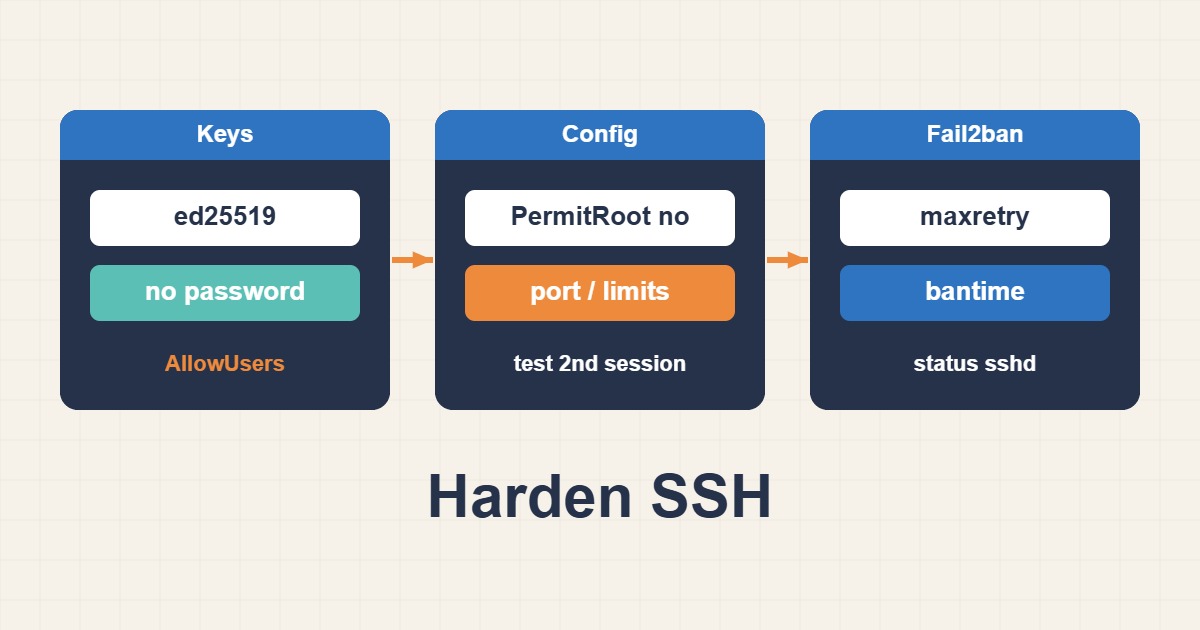
SSH is the administrative entry point for most Linux servers, so automated scanners continuously test it for weak passwords, root access, and outdated configurations. Effective hardening is not about hiding a port; it is about allowing only an auditable key, an approved account, and a recoverable access path.
Prepare a recovery path first
Keep the current SSH session open, confirm console or KVM access, and back up the configuration. Test every change from a second terminal. Disabling password authentication before validating the public key is a common way to lock yourself out.
sudo cp -a /etc/ssh/sshd_config /etc/ssh/sshd_config.backup
sudo sshd -T | less
sudo ss -lntp | grep ssh
Create a non-root administrator
Create an operational account, grant only the required privilege, and install its public key with restrictive permissions.
sudo adduser ops
sudo usermod -aG sudo ops
sudo install -d -m 700 -o ops -g ops /home/ops/.ssh
sudo install -m 600 -o ops -g ops /tmp/ops_key.pub /home/ops/.ssh/authorized_keys
From the workstation, test ssh -i ~/.ssh/id_ed25519 ops@server and then sudo -v. Never copy the private key to the server or paste it into a support ticket.
Apply a focused sshd policy
On systems that include sshd_config.d, use a separate file so the policy is easy to review:
PermitRootLogin no
PubkeyAuthentication yes
PasswordAuthentication no
KbdInteractiveAuthentication no
MaxAuthTries 3
LoginGraceTime 30
AllowUsers ops
Validate before reloading. Depending on the distribution, the service name may be ssh or sshd.
sudo sshd -t
sudo systemctl reload ssh
Open a fresh terminal and verify the ops login again. If it fails, keep the original session open and inspect journalctl -u ssh -n 100 or /var/log/auth.log.
Restrict the network path
Add the SSH rule before enabling the firewall. An allowlist for a management IP is stronger than changing the port. Where fixed addresses are unavailable, use a management VPN or bastion host.
sudo ufw allow from 203.0.113.10 to any port 22 proto tcp
sudo ufw enable
sudo ufw status numbered
Add Fail2ban as a supporting control
Fail2ban does not replace key authentication, but it reduces repeated probes. Configure a local jail and confirm that the selected backend can read your SSH logs.
[sshd]
enabled = true
bantime = 1h
findtime = 10m
maxretry = 5
backend = systemd
sudo systemctl restart fail2ban
sudo fail2ban-client status sshdSSH controls do not protect web login or API endpoints. To reduce abusive HTTP request bursts before they reach the application, follow the guide to configure Nginx rate limiting for login and API abuse.
Operate the control safely
- Remove unused accounts and stale keys on a schedule.
- Review failed logins with
lastband the SSH service journal. - Issue one key per person; shared keys destroy accountability.
- Keep OpenSSH patched through a supported distribution.
- Document and test the emergency console procedure.
Verification checklist
Key login succeeds, root and password login are disabled, sshd -t is clean, the firewall rule existed before activation, Fail2ban reports a healthy jail, and console recovery has been tested. That combination reduces exposure without sacrificing recoverability.