
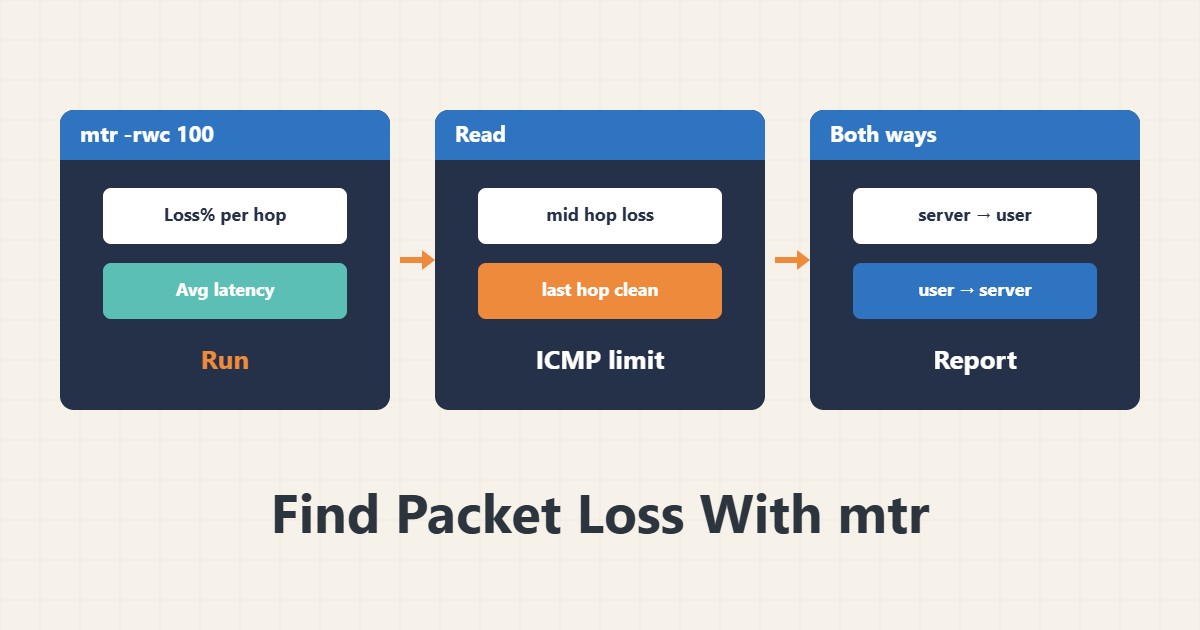
When a site or server feels slow and you are not sure whether the server or the network path is at fault, ping alone is not enough. The mtr tool combines ping and traceroute and shows loss and latency per hop. Reading the output correctly matters more than running it.
1. Run a report
sudo apt install mtr-tiny
mtr -rwc 100 example.com
The -r option gives a text report, -w shows full names and -c 100 sends a hundred packets. A small number gives random results, so send at least a hundred. The Loss% column shows the percentage lost and Avg shows average latency.
2. Real loss or ICMP limiting
If a middle hop shows loss but the last hop is healthy, there is usually no problem. Routers rate-limit ICMP replies addressed to themselves. Loss is real only when it starts at one hop and continues to the destination. Always compare the last hop with the rest.
3. Test with TCP
mtr -rwc 100 -T -P 443 example.comSome paths slow or block ICMP. TCP mode sends packets to the real service port and is closer to application behaviour. If your version lacks this option, update mtr.
4. Capture both directions
The forward and return paths can differ. Take a report from the server toward the user and from the user toward the server. Send both reports to your provider with the run time. If you suspect DNS, check the name separately with dig.
5. On Windows
Windows has pathping, which is similar and takes a few minutes. Its output follows the same logic: loss must continue to the end of the path. If the server firewall blocks ICMP, review your firewall rules.
6. Illustrative example, not a measurement
Suppose a user complained that a site was slow. The mtr report showed 40 percent loss at the fifth hop, but the last hop showed 0 percent. The conclusion was that the path was fine and the server needed checking. This scenario is an invented illustration, not a measurement.
7. Common mistakes
- Drawing conclusions from one middle hop.
- Running with fewer than a hundred packets.
- Taking a report from one side only.
- Assuming ICMP behaves like the real service.
8. Frequently asked questions
What does loss at a middle hop mean? If it does not continue, it is usually ICMP rate limiting.
Is mtr better than ping? For paths, yes; it gives separate statistics per hop.
Why do some hops show stars? That router does not answer ICMP.
9. Quick checklist
- At least a hundred packets were sent.
- The last hop was compared with the rest.
- A TCP test was also run.
- Reports were taken from both sides.
- DNS was checked separately.
If you need help reviewing performance or maintaining a server, see the server management services.
More server and WordPress guides are collected in the article archive.