
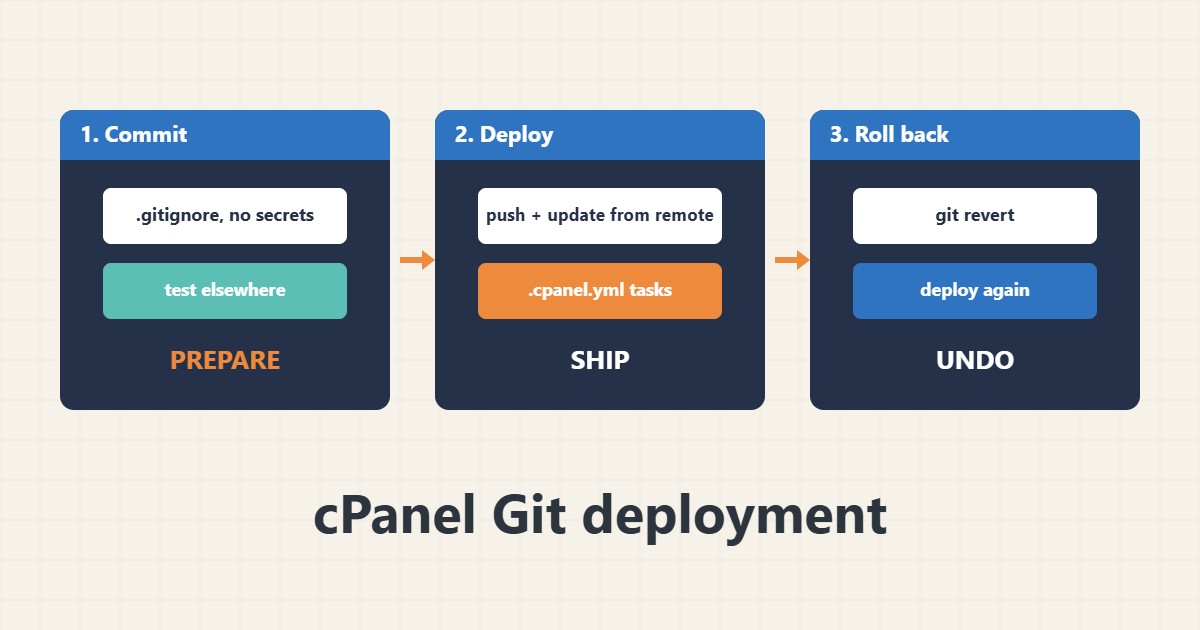
Editing files by FTP makes it hard to know who changed what and how to undo a mistake. cPanel can keep a Git repository on the account and copy selected files to the web root with a small deployment file. The workflow is simple: commit and test elsewhere, push, update from remote and deploy. Menu names come from my knowledge of cPanel and may differ by version or host; I did not run these steps on your account.
1. Prepare the repository
Keep code in Git and keep secrets and user data out of it. Add a .gitignore before the first commit:
cat .gitignore
wp-config.php
.env
wp-content/uploads/
wp-content/cache/
node_modules/
vendor/
Back up the live site before the first deploy; see the cPanel backup guide.
2. Describe the deployment
cPanel reads a .cpanel.yml file in the repository root and runs its tasks when you deploy. Copy only what belongs in the web root:
# In the repository root: .cpanel.yml
---
deployment:
  tasks:
    - export DEPLOYPATH=/home/CPANELUSER/public_html/
    - /bin/cp -R public/* $DEPLOYPATH
# Never commit wp-config.php, .env or uploads
Replace the account name and paths with your own and test on a staging subdomain first; see the monthly maintenance checklist for related routines.
3. Push and deploy
Push to the remote that cPanel manages, then use the panel to update from remote and deploy the head commit:
git status
git log --oneline -n 5
git push origin main
# After a push, use the panel's Update from Remote, then Deploy HEAD Commit
Check the site afterwards. If errors appear, read the logs; see the .htaccess guide for common rule problems.
4. Roll back safely
If a deploy breaks the site, revert the bad commit and deploy again, which keeps history clear:
# Roll back to a known good commit and deploy again
git revert <bad-commit-hash>
git push origin main
# or deploy an earlier commit after checking it out in the repository
git log --oneline -n 10
Database changes are not rolled back by Git, so restore a database backup separately if needed.
5. Mistakes to avoid
These mistakes cause trouble:
Committing wp-config.php or .env             # secrets end up in history
Deploying straight from a messy working copy  # untested code reaches the site
Using cp -R with --delete style rules by guess # may overwrite uploads or user data
No backup before the first deploy             # nothing to return to
Use SSH keys for the remote and never paste tokens or passwords into chat or tickets.
6. Illustrative example, not a measurement
Imagine a small company site (made-up) edited by two people over FTP who sometimes overwrite each other. After moving the theme files into a repository with a .cpanel.yml, every change has a commit message, and a broken deploy is undone by reverting one commit instead of searching for the old file.
7. Common mistakes
- Committing secrets.
- Deploying untested code.
- Copying over uploads or user data.
- Skipping a backup before the first deploy.
- Editing files directly on the server afterwards.
- Pasting tokens into tickets.
8. Frequently asked questions
Does Git roll back the database? No, only files.
Can I deploy a branch? Yes, if you check out that branch in the repository, but keep production on a stable branch.
Do I need SSH? For private remotes, key-based access is the safe approach.
Is this available on every host? No; it depends on the cPanel version and host settings.
9. Quick checklist
- Create .gitignore.
- Keep secrets out.
- Write .cpanel.yml.
- Back up first.
- Push and update from remote.
- Deploy and test.
- Revert if needed.
If you need help reviewing performance or maintaining a server, see the server management services.
More server and WordPress guides are collected in the article archive.
Official references
cPanel: Git Version Control · cPanel: Guide to Git Deployment · Git: git pull · Git: gitignore