
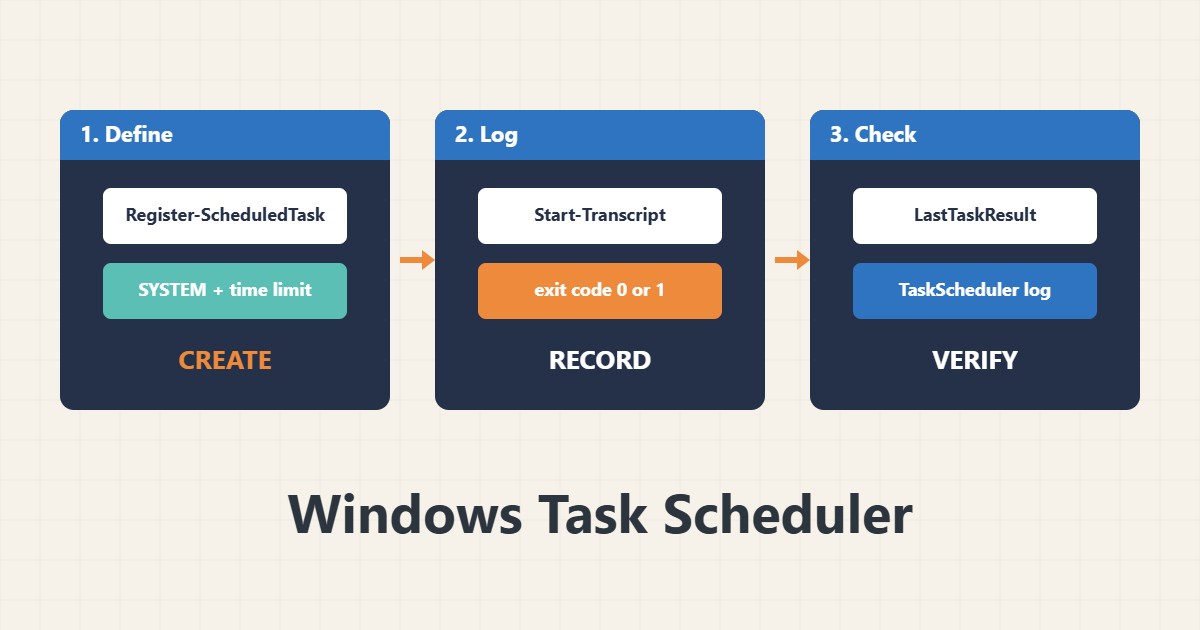
Scheduled tasks run backups, cleanups and reports on a Windows server, but many fail silently: they depend on a logged-on user, use relative paths or hang forever. This guide shows how to create a task with PowerShell, make the script log its own result and find out why a run failed. Commands follow the Microsoft documentation; I did not run them on your server, and you should test in a maintenance window.
1. Create the task with PowerShell
Defining the task in code makes it repeatable. Run it as SYSTEM or a service account, set a time limit and avoid overlapping runs:
$action  = New-ScheduledTaskAction -Execute 'powershell.exe' `
  -Argument '-NoProfile -ExecutionPolicy Bypass -File C:\Scripts\backup.ps1'
$trigger = New-ScheduledTaskTrigger -Daily -At 3:30am
$settings = New-ScheduledTaskSettingsSet -StartWhenAvailable -MultipleInstances IgnoreNew `
  -ExecutionTimeLimit (New-TimeSpan -Hours 2)
Register-ScheduledTask -TaskName 'NightlyBackup' -Action $action -Trigger $trigger -Settings $settings `
  -User 'NT AUTHORITY\SYSTEM' -RunLevel Highest
Use absolute paths everywhere because the task does not start in your profile folder.
2. Make the script log and return a result
A task is only as clear as its script. Log to a file and return a non-zero exit code on failure:
# C:\Scripts\backup.ps1 (skeleton)
$ErrorActionPreference = 'Stop'
Start-Transcript -Path 'C:\Logs\backup-$(Get-Date -Format yyyy-MM-dd).log'
try { # ... your backup command here ... ; exit 0 }
catch { Write-Error $_; exit 1 }
finally { Stop-Transcript }
Do not store passwords in scripts. Keep backups consistent; see the backup guide.
3. Check the last result
Look at the last run time and result code, and run the task by hand to test it:
Get-ScheduledTask -TaskName 'NightlyBackup' | Get-ScheduledTaskInfo |
  Select-Object LastRunTime, LastTaskResult, NextRunTime
Start-ScheduledTask -TaskName 'NightlyBackup'
Get-ScheduledTask | Where-Object State -eq 'Disabled' | Select-Object TaskName
A result of 0 means success. Other codes need the log or the Task Scheduler event log.
4. Read the operational log
Enable the log if needed and read recent events to see launch and failure messages:
Get-WinEvent -LogName 'Microsoft-Windows-TaskScheduler/Operational' -MaxEvents 30 |
  Select-Object TimeCreated, Id, Message | Format-Table -Wrap
# Enable the log first if it is empty:
wevtutil sl Microsoft-Windows-TaskScheduler/Operational /e:true
For a wider event timeline see the Linux timers guide as a comparison of scheduling approaches.
5. Mistakes to avoid
These settings cause silent failures:
Task runs only when the user is logged on   # stops after logout or reboot
Relative paths in the script               # SYSTEM has a different working directory
No time limit or overlap setting           # a hung run blocks the next ones
Password stored in the script              # use a managed account or SYSTEM
Test after a reboot and after the password of any account used has changed.
6. Illustrative example, not a measurement
Imagine a file server (made-up) whose nightly cleanup task shows a last result of 267011, meaning it has not run yet, and no log file. The task was set to run only when a user is logged on. After re-registering it as SYSTEM with a time limit and a log, the next morning shows a result of 0 and a log with the deleted file count.
7. Common mistakes
- Run only when the user is logged on.
- Relative paths in scripts.
- No time limit or overlap setting.
- Passwords stored in scripts.
- No logging or exit codes.
- Never testing after a reboot.
8. Frequently asked questions
What does LastTaskResult 0 mean? The task completed successfully.
Should I run as SYSTEM? Often yes for local jobs; use a dedicated service account when network access is needed.
Why does my script work by hand but not in the task? Different account, environment and working directory.
GUI or PowerShell? PowerShell is repeatable and easier to document.
9. Quick checklist
- Define the task in PowerShell.
- Use SYSTEM or a service account.
- Set a time limit.
- Prevent overlapping runs.
- Log inside the script.
- Check LastTaskResult.
- Read the operational log.
If you need help reviewing performance or maintaining a server, see the server management services.
More server and WordPress guides are collected in the article archive.
Official references
Microsoft: Register-ScheduledTask · Microsoft: Get-ScheduledTaskInfo · Microsoft: Task Scheduler · Microsoft: schtasks