
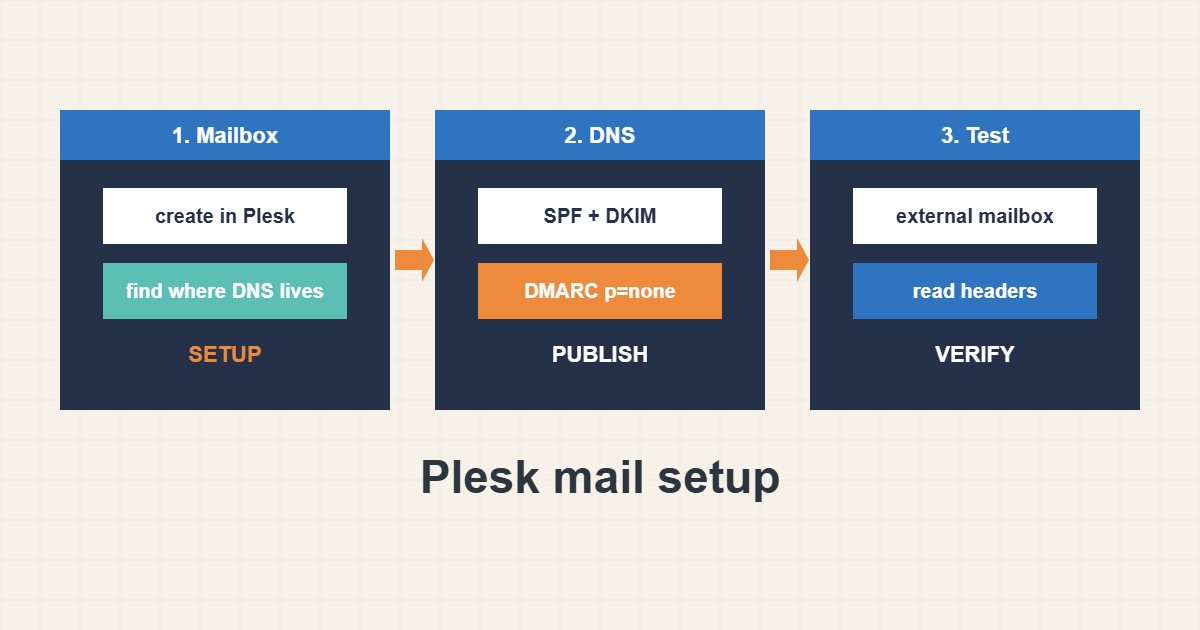
Creating a mailbox in Plesk takes a minute. Making sure mail from it reaches the inbox takes three DNS records and a little testing. This guide covers the mailbox basics, then SPF, DKIM and DMARC in simple terms, and shows how to check each one from the command line. Menu names are from my own knowledge and can differ by Plesk version, and I did not run these commands on a real server.
1. Create mailboxes and decide where DNS lives
Add the mailbox from the Mail section of the subscription and pick a strong password. The key question is where DNS is hosted. If Plesk is the DNS server, it can create the mail records for you. If DNS is at the registrar or a CDN, you must copy the records there yourself. See the email deliverability guide for the overall picture.
2. SPF: who may send for your domain
SPF is a TXT record that lists the servers allowed to send mail for the domain. A simple version authorizes the domain’s A and MX hosts and your server’s IP:
example.com.  TXT  "v=spf1 +a +mx +ip4:203.0.113.10 ~all"
_dmarc.example.com.  TXT  "v=DMARC1; p=none; rua=mailto:dmarc@example.com"
There must be only one SPF record, and it may use at most ten DNS lookups. Include third-party senders such as a newsletter service only when you actually use them.
v=spf1 include:a.example include:b.example include:c.example ... ~all   # too many lookups
v=spf1 +a +mx ~all   +   second v=spf1 record      # two SPF records are invalid
3. DKIM: a signature on every message
DKIM adds a cryptographic signature to outgoing mail. Plesk can generate the key and publish the public part in DNS if it manages your zone; otherwise copy the TXT record it shows. Then confirm that the record exists:
dig +short TXT example.com | grep -i spf
dig +short TXT default._domainkey.example.com
dig +short TXT _dmarc.example.com
dig +short MX example.com
The selector name (here default) depends on the setup, so use the one your panel shows.
4. DMARC: tell receivers what to do
DMARC ties SPF and DKIM to the visible From address and tells receivers what to do on failure. Start with p=none and a reporting address, read the reports for a few weeks, and only then move to stricter policies. Jumping straight to reject can block your own legitimate mail.
5. Test the connection and the log
Check that submission works over TLS and read the mail log for delivery status:
tail -n 50 /var/log/plesk-mail/maillog 2>/dev/null
grep -i 'status=' /var/log/maillog | tail -n 20
openssl s_client -connect mail.example.com:587 -starttls smtp -brief
Send a test message to an external mailbox and read the headers for SPF, DKIM and DMARC results. Port 25 is often blocked by hosting providers for clients, so use 587 or 465 with authentication.
6. Illustrative example, not a measurement
Imagine a new domain (made-up) whose messages land in spam. DNS shows an SPF record, but no DKIM record because DNS is at the registrar and the Plesk key was never copied there. After publishing the DKIM TXT record and adding a basic DMARC record, a test message shows SPF, DKIM and DMARC all passing.
7. Common mistakes
- Publishing two SPF records.
- Skipping DKIM when DNS is external.
- Starting DMARC at reject.
- Exceeding ten SPF lookups.
- Using port 25 for client submission.
- Not testing headers after changes.
8. Frequently asked questions
Do I need all three records? SPF and DKIM are strongly recommended, and DMARC completes the set. Major receivers expect them.
Where do DNS records go? Wherever your DNS zone is hosted: Plesk, the registrar or a CDN.
Why does mail go to spam? Missing authentication, a poor IP reputation or content issues. Check headers first.
How long do DNS changes take? Usually minutes to hours, depending on the TTL.
9. Quick checklist
- Create the mailbox.
- Locate where DNS is hosted.
- Publish a single SPF record.
- Publish the DKIM record.
- Add DMARC with p=none.
- Test with an external mailbox.
- Review headers and logs.
If you need help reviewing performance or maintaining a server, see the server management services.
More server and WordPress guides are collected in the article archive.
Official references
Plesk docs: Mail · RFC 7208: SPF · RFC 6376: DKIM · RFC 7489: DMARC