
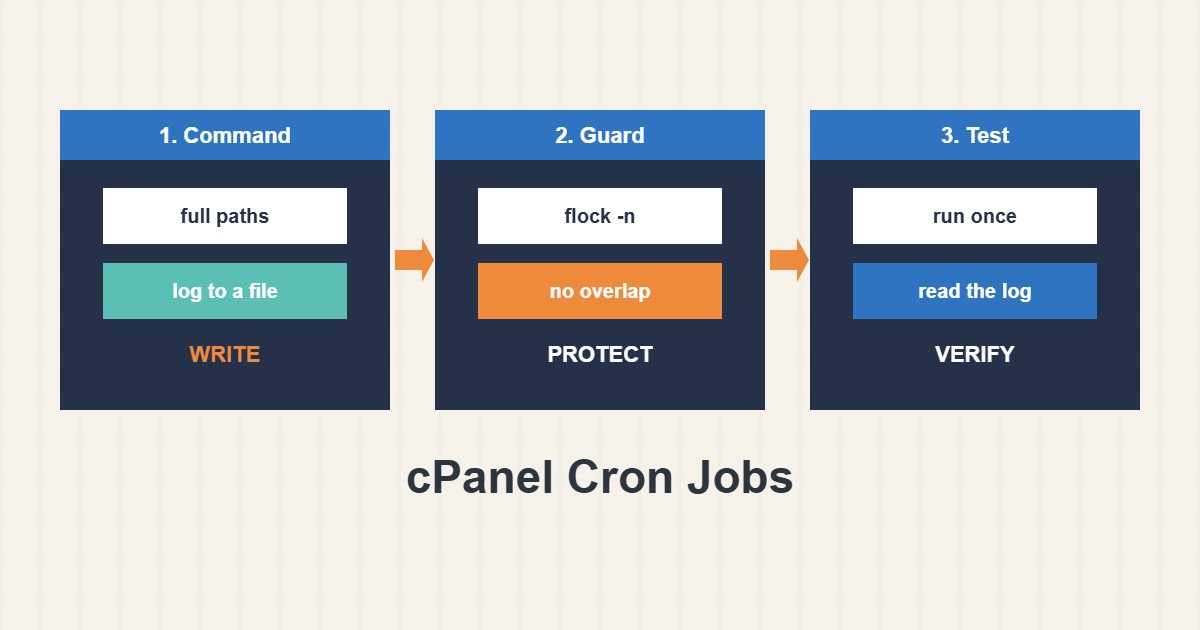
Cron jobs run the quiet work of a website: sending queued mail, syncing data, creating backups and keeping WordPress scheduled tasks on time. On cPanel hosting you manage them in a web form, which makes them easy to create and just as easy to get wrong. A cron job that fails silently, runs twice at once or exhausts the account limits causes problems that are hard to trace. This guide shows how to write a cron job in cPanel that is predictable, logs its output and cannot pile up on itself. Menu names can differ slightly between cPanel versions and themes.
1. Find the Cron Jobs tool and read the schedule
In cPanel open Advanced, then Cron Jobs. Each job has five time fields and a command: minute, hour, day of month, month and weekday. A star means every value, and */15 means every 15 units. The server time zone decides when “3 am” is, and it may differ from yours, so check the server time before you schedule something around a quiet period. Many shared hosts also refuse very short intervals such as every minute, so use five or fifteen minutes unless your host says otherwise.
2. Write the command with full paths
Cron runs with a small environment and no interactive shell, so a command that works in your head may fail there. Use full paths for the program and the script, and send all output to a file so you can read it later:
# Minute Hour Day Month Weekday  Command
*/15 * * * * flock -n $HOME/cron-sync.lock /usr/local/bin/php -q $HOME/public_html/scripts/sync.php >> $HOME/logs/sync.log 2>&1
/usr/local/bin/php is the account’s default PHP on most cPanel servers, but if your site uses a specific version, check the path your host documents. $HOME points to your home directory, and -q suppresses the PHP header output. The final part appends normal output and errors to a log file, which is the first place you will look when something goes wrong.
3. Prevent overlapping runs
If a job takes longer than its interval, the next run starts while the first is still working, and the account can run out of processes or memory. The flock -n prefix takes a lock file and skips the run if the previous one still holds it. Create the log folder once before you start, and delete old logs from time to time so they do not eat disk space. If the account has tight limits, a pile of overlapping jobs is a common reason for a resource error; see the 508 resource limit guide.
4. Replace WP-Cron with a real cron job
WordPress runs its scheduled tasks when someone visits a page, which is unreliable on a quiet site and wasteful on a busy one. Turn that off and call the file on a schedule:
# wp-config.php
define('DISABLE_WP_CRON', true);

# cPanel cron, every 10 minutes
*/10 * * * * /usr/local/bin/php -q $HOME/public_html/wp-cron.php >/dev/null 2>&1
Ten minutes is enough for most sites. See the WP-Cron guide for the full reasoning. Keep an eye on the first days after the change, because scheduled posts and mail queues now depend on this one job.
5. Handle email output and the percent sign
By default cPanel emails the output of every cron run to the account contact, and a job every five minutes can send hundreds of messages a day. Redirect output to a log with >> file 2>&1, or to /dev/null only when you really do not need it. Remember also that a percent sign has a special meaning in crontab, so escape it:
# A literal percent sign must be escaped in crontab
0 3 * * * tar -czf $HOME/backups/site-$(date +\%F).tar.gz $HOME/public_html
Without the backslash the command is cut at the first percent sign and the rest is read as input, a classic cause of a job that “runs” but does nothing.
6. Test it before you trust it
Run the exact command once from the Terminal or by setting the job to run in the next few minutes, then read the log. Confirm the script did its work, the lock file appears while it runs and no stray email arrives. When it is stable, move it to its normal schedule. Write a short comment above the job in your own notes about what it does and who depends on it.
7. Illustrative example, not a measurement
Imagine a sync script that normally takes 4 minutes and is scheduled every 15 minutes (made-up numbers). One day the remote service slows down and the script needs 20 minutes. Without a lock, the next run starts after 15 minutes and the two copies compete for the database. With flock -n, the second run simply exits, the log shows nothing for that slot, and the first run finishes alone. The job looks like this:
*/15 * * * * flock -n $HOME/cron-sync.lock /usr/local/bin/php -q $HOME/public_html/scripts/sync.php >> $HOME/logs/sync.log 2>&18. Common mistakes
- Using relative paths or a command that relies on your interactive shell.
- Throwing away all output, so failures are invisible.
- Scheduling heavy jobs every minute on shared hosting.
- Forgetting to escape a percent sign in a date command.
- Leaving WP-Cron enabled and adding a real cron job on top without a reason.
- Not checking the server time zone.
9. Frequently asked questions
Why does my job work in the browser but not in cron? The browser runs in a normal web request. Cron has a smaller environment, no web server variables and no current directory, so use full paths and test the command in Terminal.
Can I run a job every minute? Technically yes, but many hosts limit it and it adds load. Choose the longest interval your task can tolerate.
How do I stop a job quickly? Delete or comment out the line in the Cron Jobs page. A job that is already running finishes by itself or must be ended in Terminal.
Should I use wget or curl to call a URL? Running the script directly with PHP is lighter and does not depend on the web server, caching or a firewall. Use a URL only when the code cannot run from the command line.
10. Quick checklist
- Open Advanced, then Cron Jobs, and check the server time.
- Use full paths and send output to a log file.
- Add
flock -nto prevent overlap. - Escape percent signs in the command.
- Replace WP-Cron only if you set
DISABLE_WP_CRONtoo. - Test once and read the log.
- Review the job and the logs monthly.
If you need help reviewing performance or maintaining a server, see the server management services.
More server and WordPress guides are collected in the article archive.
Official references
cPanel Documentation: Cron Jobs · Linux man-pages: crontab(5) · Linux man-pages: flock(1) · WordPress Developer: Cron