
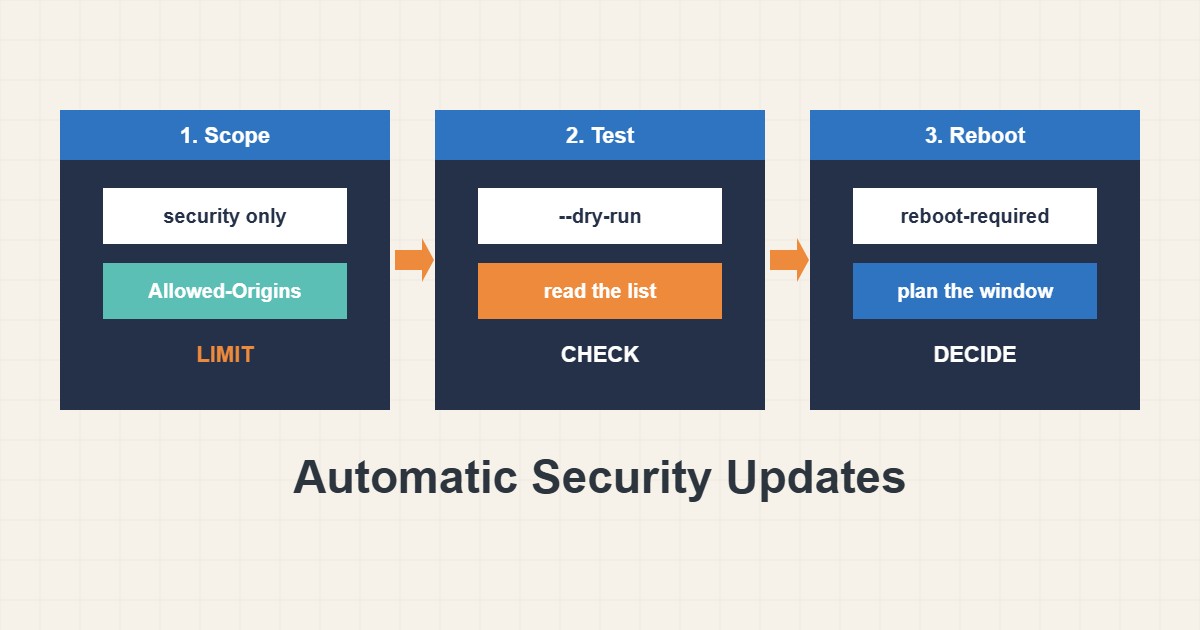
A server that nobody patches slowly becomes an easy target, and a server that patches itself carelessly can break at three in the morning. unattended-upgrades sits in the middle: it installs security updates automatically on Debian and Ubuntu, but only if you configure what it may touch, when it may restart things and how you will know what it did. This guide sets it up with conservative defaults, tests it without changing anything, and lists the decisions that matter on a web server.
1. Decide what you want automated
Automatic updates are a trade: you accept a small chance of an unexpected change in return for closing known holes quickly. For most web servers the right scope is security updates only. Regular feature updates, new major versions of databases and anything that changes configuration formats are better applied by hand in a planned window. Before you enable anything, make sure you have a backup you have actually restored once, and know how to roll back a package. A time-limited update is much easier to defend than a mysterious outage.
2. Install and enable it
On Ubuntu it is often preinstalled. On Debian or a minimal image install it:
sudo apt update
sudo apt install unattended-upgrades
sudo dpkg-reconfigure -plow unattended-upgrades
The last command asks whether to download and install stable updates automatically. Answer yes and it writes a small file that turns on the two daily jobs:
// /etc/apt/apt.conf.d/20auto-upgrades
APT::Periodic::Update-Package-Lists "1";
APT::Periodic::Unattended-Upgrade "1";
The first line refreshes the package lists every day and the second runs the upgrade every day. The number is a number of days, and "0" disables the job.
3. Limit it to security updates
The file /etc/apt/apt.conf.d/50unattended-upgrades decides which repositories are allowed. Look at the Allowed-Origins block:
// /etc/apt/apt.conf.d/50unattended-upgrades (excerpt)
Unattended-Upgrade::Allowed-Origins {
        "${distro_id}:${distro_codename}";
        "${distro_id}:${distro_codename}-security";
};
On a stock install the security line is active and the broader update lines are commented out with //. Keep it that way unless you have a reason. If you later enable the general updates origin, you widen the scope from security fixes to everything in that repository, which is a different risk. Third-party repositories are not included unless you add their origin on purpose.
4. Protect what must not change on its own
Some packages should never be upgraded without you watching: a database server, a custom-built service or a package pinned to a version your application needs. Use the blacklist, and set the reporting you want in the same file:
// Packages that must never be upgraded automatically
Unattended-Upgrade::Package-Blacklist {
        "mysql-server";
};

Unattended-Upgrade::Automatic-Reboot "false";
Unattended-Upgrade::Mail "root";
Unattended-Upgrade::MailReport "only-on-change";
The blacklist entries are patterns matched against package names, so keep them specific. The mail settings need a working local mail setup to deliver anything; if your server cannot send mail, rely on the log in a later step. Remember that a security fix in an excluded package then becomes your job, so put a recurring reminder in your calendar and check it by hand.
5. Test with a dry run
Before you trust it, ask what it would do without installing anything:
sudo unattended-upgrade --dry-run --debugThe output lists the allowed origins and the packages that would be upgraded. If the list is empty, that is normal when everything is current. If it contains something unexpected, fix the configuration now, not after the real run. A dry run is the safest way to check a new blacklist or a new origin.
6. Know when it runs and where it logs
The work is started by two systemd timers, one for refreshing lists and one for upgrading. You can see their schedule, and the systemd timers guide explains how to read timers in general:
systemctl list-timers 'apt-daily*'Results go to a log, and a pending reboot is marked by a file:
sudo tail -n 40 /var/log/unattended-upgrades/unattended-upgrades.log
ls -l /var/run/reboot-required
If /var/run/reboot-required exists, a kernel or core library update is installed but not active yet. The old kernel keeps running until you reboot, so a patched server that never restarts is still exposed to kernel flaws. Schedule the reboot deliberately.
7. Reboots: manual first, automatic only with a plan
The safe default is Automatic-Reboot "false", and you restart at a time you choose. Some teams accept an automatic reboot in a quiet window:
// Only if you accept a planned reboot window
Unattended-Upgrade::Automatic-Reboot "true";
Unattended-Upgrade::Automatic-Reboot-Time "03:30";
Only enable this if the server can be down for a minute, services start by themselves at boot and you have a monitor that alerts you if they do not. For a single server with a website, a manual reboot after you read the log is often the better trade.
8. Illustrative example, not a measurement
A dry run on a made-up Ubuntu server might print something like this:
Allowed origins are: o=Ubuntu,a=noble, o=Ubuntu,a=noble-security
Packages that will be upgraded: libssl3 openssl
Install: libssl3:amd64 (3.0.x) openssl:amd64 (3.0.x)
It shows that only the release and its security pocket are allowed and that two OpenSSL-related packages would be upgraded. Because OpenSSL is used by the web server, you would expect the web service to be restarted or to need a restart afterwards, so you would check the site and its certificate right after the real run. This is a reading exercise, not a recorded result.
9. Common mistakes
- Enabling every origin, which turns security patching into unreviewed upgrades of everything.
- Assuming a patched kernel is running before a reboot has happened.
- Turning on automatic reboot on a single production server without a monitor.
- Leaving the database server in the allowed set when you cannot tolerate a restart.
- Never reading the log, so a long-failing job goes unnoticed.
- Skipping backups because updates are small.
10. Frequently asked questions
Does it restart my web server? Packages restart the services they own when they are upgraded, so a brief restart of a service is possible. Check the site after a run and use a quiet time for the schedule if it matters.
Does it update WordPress? No. It handles operating system packages only. WordPress core, themes and plugins follow their own process; see the safe WordPress update guide.
How do I stop it for one night? Edit the configuration or stop the timers temporarily, and turn them back on afterwards. A forgotten disabled timer is how servers stay unpatched.
Is it enough on its own? No. It is one layer next to backups, monitoring and a firewall.
11. Quick checklist
- Confirm a tested backup exists.
- Install the package and enable the two daily jobs.
- Keep the allowed origins to security updates.
- Blacklist packages that must change only by hand.
- Run
--dry-run --debugand read it. - Check the timers and read the log regularly.
- Plan reboots when
reboot-requiredappears.
If you need help reviewing performance or maintaining a server, see the server management services.
More server and WordPress guides are collected in the article archive.
Official references
Debian Wiki: UnattendedUpgrades · Ubuntu Server: Package management · Debian manpages: unattended-upgrade · Debian: Security information