
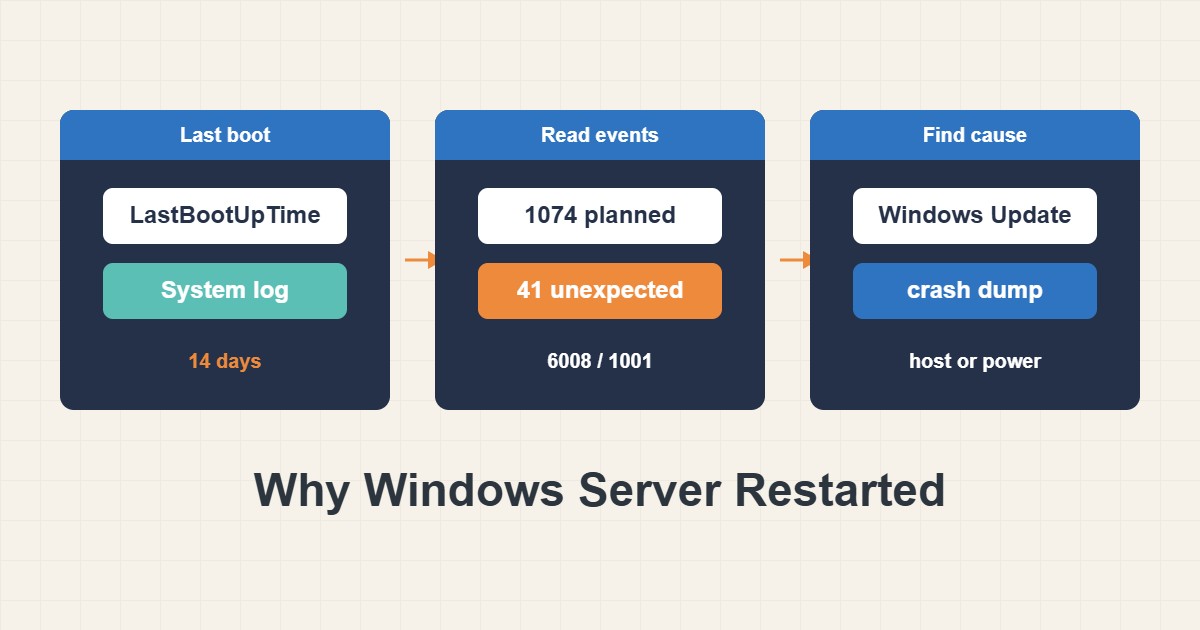
The worst answer to “why did the server restart?” is a shrug. A Windows Server that restarts on its own is either doing something you planned, such as an update, or something you did not, such as a crash or a power loss, and the System event log almost always tells you which. This guide shows how to find the last start time, build a timeline of restart and crash events with PowerShell, read the pattern, check Windows Update, look for crash dumps and decide what to change afterwards. Everything here only reads information, so it is safe to run on a production server.
1. Start with the time of the last boot
Begin with the exact moment the server last started, so you know which part of the log to read:
# Run in an elevated PowerShell: when did the server last start?
(Get-CimInstance Win32_OperatingSystem).LastBootUpTime
Run PowerShell as administrator. The result is a date and time in the server’s local time zone. Compare it with the time users reported the problem, and write it down. If the uptime is much longer than the incident, you are looking at the wrong restart.
2. Build a timeline from the System log
A handful of event IDs describe almost every restart:
# Restart and crash events from the last 14 days, oldest first
Get-WinEvent -FilterHashtable @{LogName='System'; Id=41,1001,1074,1076,6005,6006,6008; StartTime=(Get-Date).AddDays(-14)} |
  Sort-Object TimeCreated |
  Format-List TimeCreated, Id, ProviderName, Message
Event 6005 means the event log service started, which happens at every boot. Event 6006 means it stopped cleanly. Event 1074 is recorded when a process or user starts a shutdown or restart and includes the process, the user and the reason. Event 41 from Kernel-Power means the system restarted without shutting down cleanly. Event 6008 says the previous shutdown was unexpected. Event 1076 appears when an administrator gave a reason after an unexpected shutdown. Event 1001 from the bug check source means the computer rebooted after a blue screen and names the bug check code.
3. Read the pattern
You do not need to memorize every ID. Look for the sequence just before the boot:
- 1074, then 6006, then 6005: a planned restart. The 1074 message shows who or what asked for it, for example an update process, a person at a console or a script.
- 41 and 6008 with no 1074: an unexpected restart, such as a crash, power loss or hard reset. Event 41 often lists a bug check code, and a code of zero usually means no blue screen was recorded, which points at power or a hard reset.
- 1001 with a bug check code: a blue screen. The message names the code and where a dump was saved.
- 1076 after the boot: someone typed a reason when the server asked. That is human context worth reading.
4. Check Windows Update and maintenance windows
Many surprise restarts are updates that finished and restarted on schedule:
# Was Windows Update active around that time?
Get-WinEvent -FilterHashtable @{LogName='System'; ProviderName='Microsoft-Windows-WindowsUpdateClient'; StartTime=(Get-Date).AddDays(-14)} |
  Sort-Object TimeCreated |
  Format-Table TimeCreated, Id, Message -AutoSize -Wrap
Look for update events near the restart time. If the timing matches, check the active hours and restart policy, and whether a management tool or a scheduled task also restarts servers. The cause may be a setting, not a fault.
5. If it crashed, look for a dump
A blue screen can leave a file that tells you what failed:
# Is there a crash dump to analyze?
Get-ChildItem C:\Windows\MEMORY.DMP, C:\Windows\Minidump -ErrorAction SilentlyContinue |
  Select-Object FullName, Length, LastWriteTime
If no dump exists, the server may not be configured to write one. Open System Properties, Advanced, Startup and Recovery, and check the dump setting and the dump location. Analyzing a dump needs a debugger and symbols and is a separate skill, but even the bug check code from event 1001 or 41 is enough to search for a known cause, such as a driver or storage problem.
6. Remember virtual machines and power
On a virtual machine, an unexpected restart can come from the host: a host failure, a live migration gone wrong or a reset from the management console. The guest only sees an unclean stop. Check the hypervisor’s own event log at the same time. On physical servers, check the out-of-band management log and the power supply, because a clean power cut looks exactly like event 41 with no bug check.
7. What to change afterwards
Keep the settings that make the next incident easier to read. Leave the shutdown reason prompt enabled, so people record why they restarted. Make sure a dump type is configured. Add an alert for events 41 and 1074 in your monitoring, so a restart never goes unnoticed. For remote access problems that may follow a restart, see Troubleshoot Windows Server RDP Without Exposing Port 3389.
8. A worked example
This example is illustrative, not a record of a real server. Users report that an application stopped at 03:10. The last boot time is 03:14. The timeline shows event 1074 at 03:09 from an update process, then 6006 and 6005. That is a planned update restart, and the fix is to move the update window outside business hours, not to chase a fault. If instead you saw event 41 and 6008 with no 1074 and a bug check code of zero, you would check power and the host.
9. Common mistakes
- Assuming every restart is a crash without reading event 1074.
- Reading only the Application log, where these events are not recorded.
- Ignoring the time zone, so events look hours off.
- Skipping the hypervisor log on virtual machines.
- Clearing the event log before finishing the investigation.
10. Frequently asked questions
Can I do this from the Event Viewer instead? Yes. Open Windows Logs, then System, and use Filter Current Log with the same IDs. PowerShell is faster to repeat and easier to save.
Do I need administrator rights? Reading the System log may work for a standard user in some setups, but run an elevated shell to avoid permission surprises.
How far back does the log go? Only as far as its size limit allows, and older events are overwritten. If the incident is old, the events may be gone.
Is event 41 always a crash? No. It only says the shutdown was not clean, so power loss and hard resets also produce it.
11. Quick checklist
- Get the last boot time and write it down.
- Pull events 41, 1001, 1074, 1076, 6005, 6006 and 6008 for the period.
- Decide: planned (1074) or unexpected (41 and 6008).
- Check Windows Update events and restart settings.
- Look for a dump and note the bug check code.
- Check the host or power on virtual and physical servers.
- Add an alert for restarts and keep the reason prompt on.
If you need help reviewing performance or maintaining a server, see the server management services.
More server and WordPress guides are collected in the article archive.
Official references
Microsoft Learn: Get-WinEvent · Microsoft Learn: Get-CimInstance · Microsoft Learn: Win32_OperatingSystem