
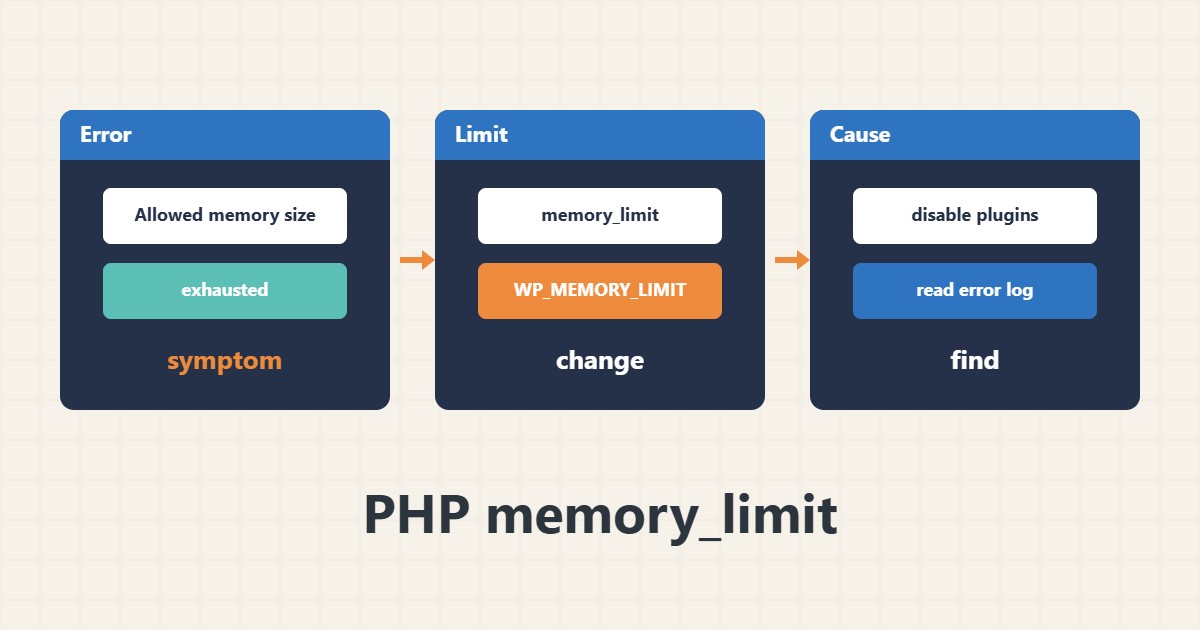
The message “Allowed memory size of … bytes exhausted” means a PHP script used more than its memory cap. Raising the number sometimes helps, but if a heavy plugin or an endless loop is the cause, it only postpones the problem.
1. Check the current value
Read the effective value from the environment that actually serves the site, not just the CLI, because their php.ini files can differ:
php -i | grep memory_limit2. Where to change it
memory_limit can be changed in php.ini or the host PHP settings. WordPress also has the WP_MEMORY_LIMIT constant in wp-config.php, which only works up to the PHP cap. On shared hosting the provider may set the ceiling.
define( 'WP_MEMORY_LIMIT', '256M' );3. Find the real cause
If the error appears only on one page or one operation (such as a data import), disable plugins one at a time and check the error log. The file name in the error message often points to the culprit.
4. Illustrative example, not a measurement
Suppose (an illustrative case) the error appears at a 128 MB cap and after raising to 256 MB it only recurs later. That pattern usually signals a memory leak or heavy processing in one plugin.
5. Common mistakes
- Raising the value to 1 GB without finding the cause.
- Editing wp-config.php and expecting to exceed the php.ini cap.
- Forgetting to restart PHP-FPM or the web server after the change.
6. Frequently asked questions
What value is appropriate? 256 MB is enough for most WordPress sites; the exact figure depends on plugins.
My change had no effect. Why? A different php.ini may be active or the provider may have locked the cap.
7. Quick checklist
- Read the current value from the web environment.
- Note the file name in the error message.
- Test the suspect plugin.
- Raise the cap sensibly if needed.
- Reload the PHP service.
If you need help reviewing performance or maintaining a server, see the server management services.
More server and WordPress guides are collected in the article archive.