
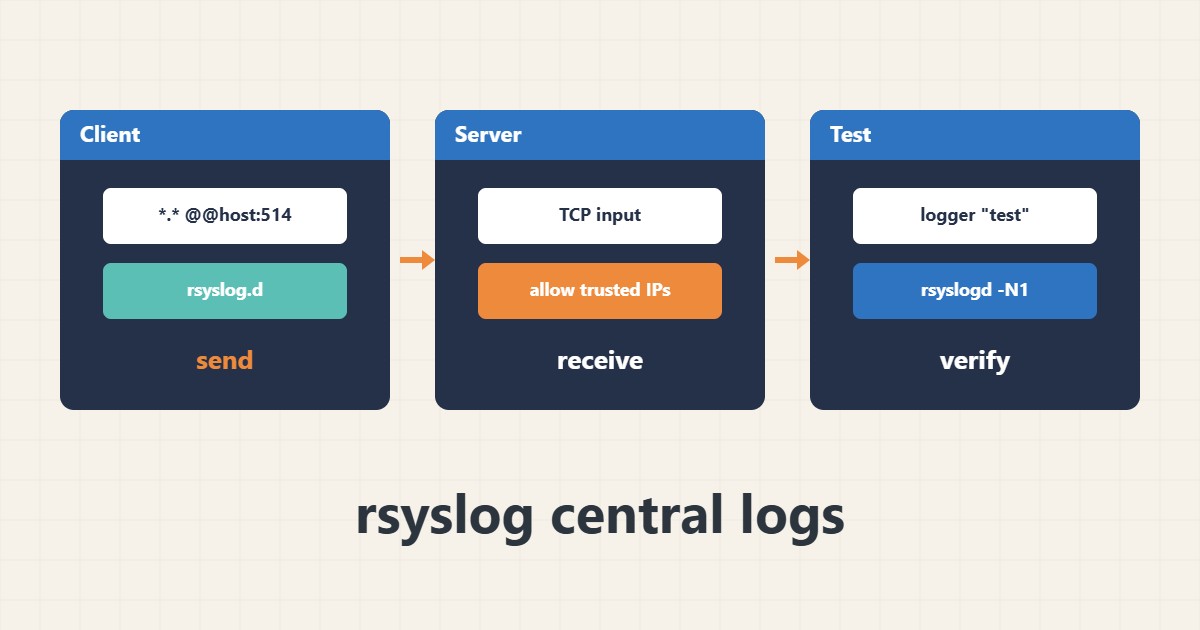
Keeping logs only on the same server is risky: if it is compromised or fails, the evidence goes with it. rsyslog can forward messages to a central server so you keep a copy away from the original host.
1. Client forwarding setup
Create a config file in the rsyslog.d directory. A double @@ means TCP and a single @ means UDP; the address below is an example:
*.* @@logs.example.internal:5142. Enable receiving on the central server
The central server must load the TCP input module and open the port only to the IPs of trusted servers. Leaving port 514 open to everyone is dangerous.
3. Test and troubleshoot
After restarting the service, send a test message with logger and look for it on the central server. If it does not arrive, check the firewall, the port and the configuration:
rsyslogd -N1
logger "rsyslog test"
4. Illustrative example, not a measurement
Suppose (an illustrative case) the test message appears on the client but not on the central server. The usual causes are the firewall or no listener on the port.
5. Common mistakes
- Leaving the receiving port open to the whole internet.
- Using UDP for important logs that must not be lost.
- No log rotation on the central server.
6. Frequently asked questions
Is TCP or UDP better? TCP is more reliable and recommended for important logs.
Is forwarded traffic encrypted? Not by default; use TLS or a secure tunnel over public networks.
7. Quick checklist
- Validate the config with rsyslogd -N1.
- Open the port only to trusted IPs.
- Send a test message with logger.
- Set up rotation on the central server.
If you need help reviewing performance or maintaining a server, see the server management services.
More server and WordPress guides are collected in the article archive.