
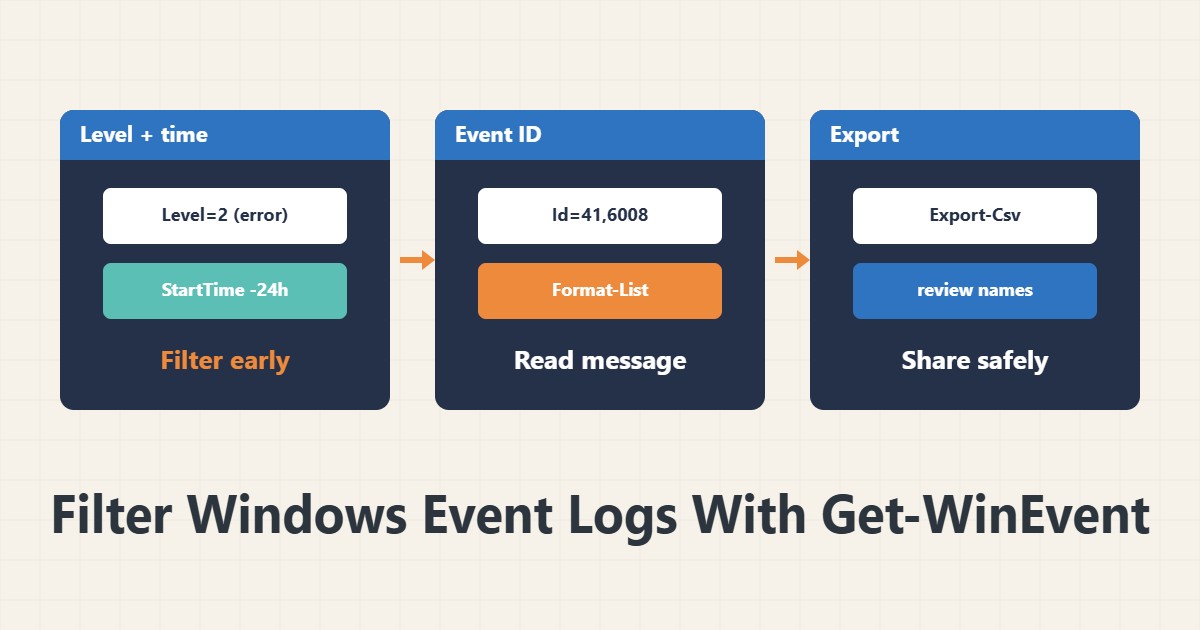
Reading Event Viewer with a mouse is slow on a server with thousands of events. The PowerShell Get-WinEvent command returns the same logs with precise filters. What matters is putting the filter in the command itself, not after fetching every event.
1. System errors in the last 24 hours
Get-WinEvent -FilterHashtable @{LogName='System'; Level=2; StartTime=(Get-Date).AddHours(-24)} -MaxEvents 50 | Format-Table TimeCreated, Id, ProviderName -AutoSizeLevel 1 is critical, 2 is error and 3 is warning. FilterHashtable filters inside the log engine and is much faster than Where-Object on a large log. MaxEvents limits the output.
2. Filter by event ID
Get-WinEvent -FilterHashtable @{LogName='System'; Id=41,6008} -MaxEvents 20 | Format-List TimeCreated, Id, MessageID 41 usually indicates an unexpected shutdown and 6008 the previous abnormal stop. Format-List shows the full message. For failed logon events see the Event 4625 guide.
3. Application-specific logs
Get-WinEvent -ListLog *Microsoft-Windows-GroupPolicy* | Select LogName, RecordCount
Get-WinEvent -LogName 'Application' -MaxEvents 10
The first command lists the available logs. Take the exact log name from this list. Some logs are disabled and must be enabled.
4. Save the output
Get-WinEvent -FilterHashtable @{LogName='System'; Level=2,3; StartTime=(Get-Date).AddDays(-1)} | Select TimeCreated, Id, ProviderName, Message | Export-Csv system-errors.csv -NoTypeInformationCSV output is useful for reports or comparison. Review the messages before sending them to others, because they may contain user or server names.
5. Another server and Get-EventLog
For a remote server you need the ComputerName parameter or remoting; its setup is in the WinRM guide. The old Get-EventLog exists only in Windows PowerShell and does not read newer logs, so use Get-WinEvent in new scripts.
6. Illustrative example, not a measurement
Suppose a server restarted overnight and the reason was unknown. Filtering IDs 41 and 6008 in the System log showed two unexpected shutdowns at specific times. The logs around those times were then reviewed. This scenario is an invented illustration, not a measurement.
7. Common mistakes
- Fetching all events and filtering later with Where-Object.
- Ignoring StartTime and MaxEvents.
- Using Get-EventLog for newer logs.
- Sending output with full messages without review.
8. Frequently asked questions
What number is Level? 1 critical, 2 error, 3 warning and 4 information.
Why is FilterHashtable faster? The filtering happens inside the log.
Must PowerShell run as Administrator? For some logs such as Security, yes.
9. Quick checklist
- The right log was chosen.
- The filter was written with FilterHashtable.
- Time window and MaxEvents were set.
- Output was saved and reviewed.
- Access to a remote server was checked.
If you need help reviewing performance or maintaining a server, see the server management services.
More server and WordPress guides are collected in the article archive.
Official references
Microsoft Learn: Get-WinEvent · Microsoft Learn: Export-Csv · Microsoft Learn: about_Hash_Tables