
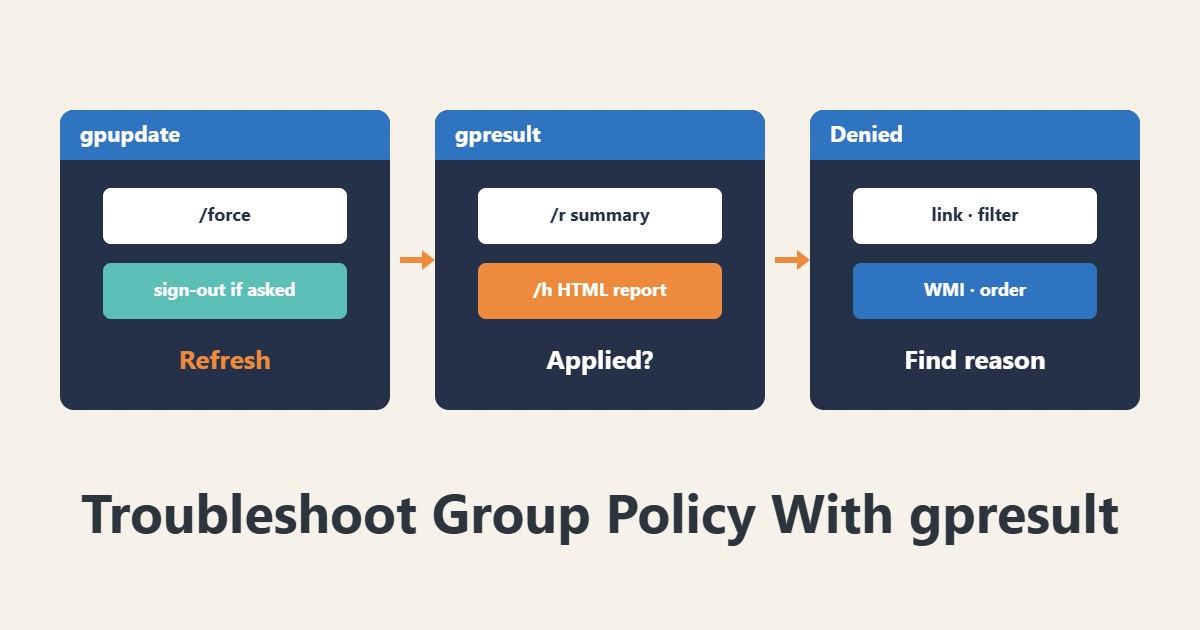
When a setting you built in Group Policy does not apply to a server or client, guessing wastes time. Two built-in commands give a clear picture: gpupdate forces a refresh and gpresult shows what actually applied. This guide is for domain-joined computers.
1. Refresh the policy
gpupdate /forceThis command re-reads computer and user policy. Some settings apply only after sign-out or a restart, and gpupdate tells you so. On a critical server, do the restart in a maintenance window.
2. See the applied policies
gpresult /r
gpresult /h C:\Temp\gp-report.html /f
The /r option gives a text summary and /h builds a full HTML report. In the report, Applied GPOs lists the applied objects and Denied GPOs lists the rejected ones. To see computer policy, run the console as Administrator.
3. Common reasons for not applying
It is usually one of these: the GPO is not linked to the right OU, security filtering does not include the computer or user, a WMI filter rejects it, or the precedence of another GPO overrides it. The Denied GPOs section states the reason for rejection.
4. Domain connectivity
If the computer cannot reach a domain controller, it will not get new policy. Check DNS and the clock. A large clock difference breaks authentication; see time sync with w32tm for that. The domain name must resolve correctly through your Windows Server DNS setup.
5. Report and root cause
In Event Viewer, under Applications and Services Logs, the Group Policy section shows the operational events. Review the HTML report before sharing it, because it contains domain and user names. Change policies in a maintenance window and document them.
6. Illustrative example, not a measurement
Suppose automatic screen lock did not apply on a server. gpresult showed the GPO under Denied with the reason “Security Filtering”. After adding the computer group to the security filter and running gpupdate, the policy applied. This scenario is an invented illustration, not a measurement.
7. Common mistakes
- Assuming gpupdate applies everything immediately.
- Running gpresult without Administrator rights and reading only the user part.
- Not reading the Denied GPOs section.
- Ignoring DNS and the clock.
8. Frequently asked questions
Why did it still not apply after gpupdate? A sign-out or restart may be needed.
Does gpresult work remotely? Yes, with the /s option and the computer name.
What is the precedence order? Local, Site, Domain and OU; the last one wins over earlier ones.
9. Quick checklist
- gpupdate /force was run.
- A gpresult report was taken.
- Applied and Denied GPOs were reviewed.
- OU link and security filtering were checked.
- DNS and the clock were checked.
If you need help reviewing performance or maintaining a server, see the server management services.
More server and WordPress guides are collected in the article archive.