
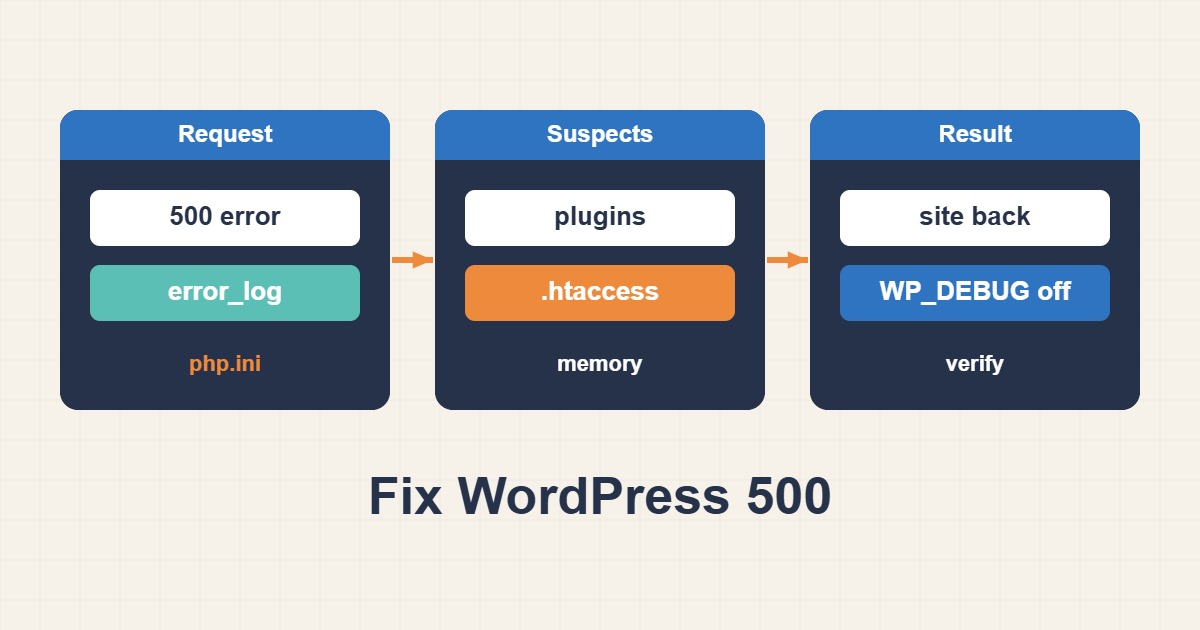
A WordPress 500 Internal Server Error means the server failed while processing a request but did not expose the underlying cause to the browser. The fastest way to solve it is to stop guessing, capture the exact failure from logs, isolate the responsible layer, apply the smallest safe correction, and verify more than the homepage.
1. Record the failure before changing anything
Note the affected URL, exact time, recent deployments, plugin or theme updates, PHP changes, and whether the error affects every page or only one action. Test once in a private browser window and preserve any request or trace ID returned by the host.
2. Read the correct error logs
Check the domain error log in cPanel, DirectAdmin, or Plesk; the Apache or Nginx error log; the PHP-FPM pool log; and wp-content/debug.log. Reproduce the error and immediately inspect the new lines. A PHP fatal error with a file path and line number is more useful than the generic browser message.
tail -n 100 /var/log/nginx/error.log
tail -n 100 /var/log/php-fpm/error.log
grep -R "Fatal error" wp-content/debug.log
Enable WordPress debugging only temporarily on production. Log errors instead of displaying them to visitors, then disable verbose logging after diagnosis.
3. Isolate plugins and the active theme
If wp-admin is available, disable the most recently changed plugin first. Otherwise rename the suspected plugin directory through SSH or the file manager. If the source is unclear, disable plugins in controlled groups and test after each change. Never delete plugin data during isolation.
A theme can also trigger a fatal error. Temporarily switch to a compatible default theme or rename the active theme directory. If the request starts working, use the log to identify the exact template or function rather than leaving the fallback theme as the final fix.
If the 500 error is accompanied by unknown plugins or files, unexpected code changes, suspicious administrator accounts, or a problem that returns after files are replaced, follow the guide to clean WordPress malware and backdoors safely and investigate a possible compromise.
4. Validate .htaccess and rewrite rules
On Apache and LiteSpeed, a malformed or unsupported directive in .htaccess can produce an immediate 500 response. Back up the file, rename it, test the failing URL, and regenerate standard WordPress rewrite rules from Settings → Permalinks. Reintroduce custom redirects and security rules one group at a time.
On Nginx, inspect the virtual-host configuration instead; WordPress does not control Nginx rewrites through .htaccess.
5. Check PHP compatibility and limits
Confirm that the PHP version is supported by WordPress, the theme, and critical plugins. Verify required extensions such as mysqli, mbstring, curl, json, zip, and intl where applicable. Compare the web SAPI version with the command-line version because they may differ.
php -v
php -m
php -i | grep -E 'memory_limit|max_execution_time|max_input_vars'
Resource limits should be increased only when logs show exhaustion. A higher memory limit can hide a leak but does not correct inefficient code. Restart or reload PHP-FPM safely after configuration changes and confirm the intended pool received the change.
6. Verify ownership and permissions
Incorrect ownership after a migration or deployment can prevent PHP from reading or writing required files. A typical baseline is 755 for directories and 644 for files, but hosting environments differ. Do not use 777 as a troubleshooting shortcut. Check the web-server user, PHP-FPM pool user, deployment user, and writable paths such as uploads and cache directories.
7. Inspect Apache, Nginx, and PHP-FPM health
For Nginx with PHP-FPM, verify the socket or TCP upstream, pool status, worker availability, timeouts, and recent restarts. For Apache, inspect module and virtual-host errors. Check disk space, inode usage, memory pressure, process limits, and OOM-killer events.
df -h
df -i
free -m
systemctl status php-fpm nginx apache2
journalctl -k | grep -i -E 'oom|killed process'
8. Check the database and external dependencies
A failed database connection, exhausted connection pool, corrupt table, or slow query may surface as a 500 error. Review database logs and WordPress database errors. Also test external APIs, SMTP services, object storage, Redis, and payment gateways when the failing request depends on them.
9. Roll back safely when the incident follows a change
If the error began immediately after a release, restore the previous known-good code or configuration while preserving uploads and database changes. Take a backup before any database rollback. Document the exact change that restores service, then reproduce and correct the root cause in staging.
10. Verify the fix
Do not stop after the homepage loads. Test wp-admin, login, search, forms, media uploads, scheduled tasks, email delivery, REST endpoints, and one database-writing action. Watch error logs and monitoring after the change. Confirm that the response is 200 where expected and that no new warnings or fatal errors appear.
Prevention checklist
- Use staging for plugin, theme, PHP, and web-server changes.
- Maintain tested backups and a documented rollback procedure.
- Monitor HTTP error rates, PHP-FPM saturation, disk space, memory, and database health.
- Keep WordPress core, extensions, and supported PHP versions current.
- Record deployment times so errors can be correlated quickly.
The key principle is evidence first: reproduce the request, read the matching log entry, isolate one layer at a time, and verify the complete user journey after the fix.