
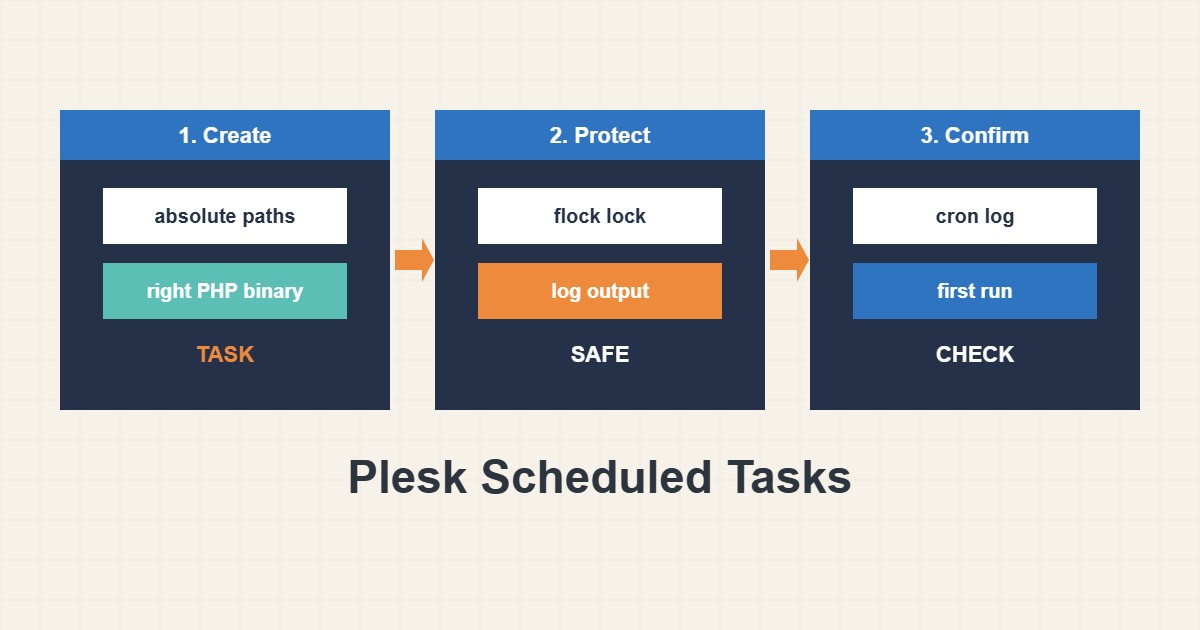
Plesk calls cron jobs “Scheduled Tasks”. They are easy to add, and just as easy to get silently wrong: a relative path, the wrong PHP version or a job that overlaps with itself can fail without anyone noticing. This guide shows how to create a task that is safe to run, how to log its output, how to prevent overlapping runs and how to check that it really ran. Menu names are from my own knowledge and can differ by Plesk version.
1. Create the task with absolute paths
In the subscription’s Scheduled Tasks page choose the task type (run a command, run a PHP script or fetch a URL) and set the schedule. For a command use full paths, because cron has a minimal environment and a different working directory:
# Task type: Run a command (example)
/usr/bin/php -q /var/www/vhosts/example.com/httpdocs/cron.php

# Better: absolute paths and logging
/usr/bin/php -q /var/www/vhosts/example.com/httpdocs/cron.php >> /var/www/vhosts/example.com/logs/cron.log 2>&1
Appending output to a log file gives you something to read when it fails.
2. Pick the right PHP binary
Plesk can have several PHP versions. A task that calls plain php may use a different version from the website. Check which one is used and call the matching binary explicitly:
which php
/opt/plesk/php/8.2/bin/php -v
crontab -l
grep CRON /var/log/syslog | tail -n 20      # Debian/Ubuntu
grep CRON /var/log/cron | tail -n 20         # RHEL family
If your site uses PHP 8.2 but the task runs 7.4, plugins may fail only in the task. For PHP settings per site see the PHP guide.
3. Prevent overlapping runs
If a job takes longer than its interval, a second copy starts and they may corrupt each other’s work or overload the server. Wrap the command with flock so a new run exits when the previous one is still working:
# Prevent overlapping runs
/usr/bin/flock -n /tmp/mytask.lock /usr/bin/php -q /var/www/vhosts/example.com/httpdocs/cron.php
Choose a sensible interval. Many jobs do not need to run every minute.
4. Confirm it actually ran
Read the system cron log and your own log file after the first scheduled time. Also set a notification option for errors if the panel offers one, so output is mailed to you. A job that fails silently is worse than no job. For heavier or dependency-based scheduling on your own server, see the systemd timers guide.
5. Common mistakes
These patterns cause most “the task does nothing” reports:
php cron.php                       # relative path, wrong working directory
* * * * * heavy-task               # every minute with no lock
curl http://example.com/cron.php   # may be cached or blocked
Fetching a URL can be cached by a CDN or blocked by a security rule, while running the script directly avoids those problems. Remember the server time zone when you set the hour.
6. Illustrative example, not a measurement
Suppose a nightly task (made-up) should clear old files but never seems to run. The command used a relative script path, and the output went nowhere. Switching to absolute paths and appending output to a log shows a “file not found” message on the first run. After correcting the path and adding a lock, the log shows one clean run each night.
7. Common mistakes
- Using relative paths in the command.
- Calling the wrong PHP version.
- No logging of output.
- Running heavy jobs every minute.
- No lock against overlapping runs.
- Ignoring the server time zone.
8. Frequently asked questions
Where are scheduled tasks in Plesk? In the Scheduled Tasks page of a subscription or in the Tools & Settings area for system-level tasks.
Why does the task use another PHP version? Because the plain php command may point to a different binary than the site’s handler.
How often should a task run? Only as often as the job needs. Avoid every-minute schedules for heavy work.
How do I stop overlapping? Use flock or a lock file inside the script.
9. Quick checklist
- Use absolute paths.
- Call the correct PHP binary.
- Append output to a log.
- Add flock for long jobs.
- Check the server time zone.
- Confirm the first run in the log.
- Review the task after PHP updates.
If you need help reviewing performance or maintaining a server, see the server management services.
More server and WordPress guides are collected in the article archive.
Official references
Plesk docs: Scheduling tasks · Plesk docs: Administrator Guide · crontab(5) manual · flock(1) manual