
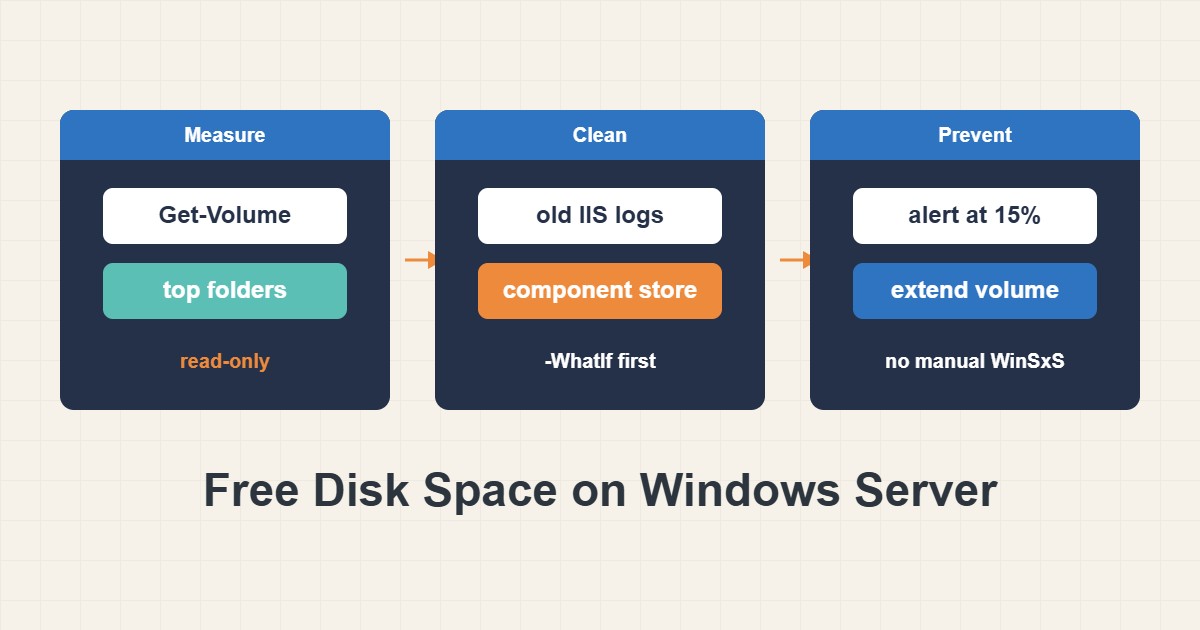
A full system drive on Windows Server does not stay a small problem. Updates fail, services crash and logs stop being written, usually at the worst time. The tempting fix is to delete big folders until it works, and that is how people break servers. This guide shows a safer order: measure where the space went, remove what is clearly disposable with a preview first, use the supported tool for the component store, and if the drive is simply too small, grow it. The commands that delete anything include a preview step.
1. See how bad it is
Start with the free space on each volume:
# Free space per volume (read-only)
Get-Volume | Where-Object DriveLetter |
  Select-Object DriveLetter,
    @{n='SizeGB';e={[math]::Round($_.Size/1GB,1)}},
    @{n='FreeGB';e={[math]::Round($_.SizeRemaining/1GB,1)}},
    @{n='Free%';e={[math]::Round(100*$_.SizeRemaining/$_.Size,1)}}
This only reads information. As a rough rule, a system drive that stays under about ten to fifteen percent free is a risk for updates and logging, though the right margin depends on the server. If a data volume is full instead, the same tools work, but the cause is usually the application that writes there.
2. Find where the space went
Do not guess. List the biggest top-level folders:
# Biggest top-level folders on C: (read-only, can be slow; run off-peak)
Get-ChildItem C:\ -Directory -Force -ErrorAction SilentlyContinue | ForEach-Object {
  $bytes = (Get-ChildItem $_.FullName -Recurse -File -Force -ErrorAction SilentlyContinue | Measure-Object Length -Sum).Sum
  [pscustomobject]@{ Folder = $_.FullName; GB = [math]::Round($bytes / 1GB, 2) }
} | Sort-Object GB -Descending | Select-Object -First 10
The command only measures, but walking every file can be slow on a large disk, so run it at a quiet time. Repeat it one level down inside the biggest folder until you find the real cause. Typical culprits are IIS or application logs, old backups kept on the system drive, the Windows Update cache, crash dumps and user profiles.
3. Take a backup before deleting anything
Before any cleanup, make sure you could undo a mistake. If there is no tested backup yet, follow Windows Server Backup with wbadmin: Back Up, Restore One File and Test first. It takes minutes and turns a possible disaster into an inconvenience. Also check that a person or process is not still using the files, such as an application writing a log.
4. Trim logs with a preview
Logs are the safest big win, and the pattern is measure, preview, delete:
# IIS logs older than 30 days: measure, then preview, then delete only after review
$old = Get-ChildItem C:\inetpub\logs\LogFiles -Recurse -File | Where-Object LastWriteTime -lt (Get-Date).AddDays(-30)
$old | Measure-Object Length -Sum
$old | Remove-Item -WhatIf   # preview only; remove -WhatIf once the list looks right
The measurement shows how much you would free. The -WhatIf switch lists what would be deleted without deleting it. Remove the switch only when the list is what you expect. Keep the retention your auditors or support team need, and for the long term set up log rotation or archiving instead of repeating this by hand.
5. Clean the component store with the supported tool
The WinSxS folder looks huge, but most of it is hard links to files used elsewhere, and deleting files inside it by hand can break updates and the whole OS. Use DISM:
# Component store (WinSxS): analyze first, clean with the supported tool
Dism /Online /Cleanup-Image /AnalyzeComponentStore
Dism /Online /Cleanup-Image /StartComponentCleanup
The first command reports the real size and says whether cleanup is recommended. The second removes superseded components safely. Do not add the reset-base option on a server unless you understand that it prevents uninstalling those updates later.
6. Handle the update cache, dumps and profiles
The Windows Update download cache can be cleared when updates are stuck or the folder is large, because Windows downloads what it needs again:
# Windows Update download cache: preview first, then remove -WhatIf
Stop-Service wuauserv
Get-ChildItem C:\Windows\SoftwareDistribution\Download -Force | Remove-Item -Recurse -Force -WhatIf
Start-Service wuauserv

# How much space shadow copies may use
vssadmin list shadowstorage
Again, remove -WhatIf only after you look at the preview. A large MEMORY.DMP in the Windows folder is a crash dump: keep a copy if you want to analyze a recent crash, then delete it. Remove old user profiles through System Properties, User Profiles, not by deleting the folder, so the registry stays consistent. The shadow copy report shows how much space point-in-time copies are allowed to use.
7. If the disk is simply too small, grow it
When everything left is needed, deleting more is the wrong answer. On a virtual machine, enlarge the virtual disk in the hypervisor first, then extend the partition:
# After growing the virtual disk: extend the partition to its maximum
Get-PartitionSupportedSize -DriveLetter C
Resize-Partition -DriveLetter C -Size (Get-PartitionSupportedSize -DriveLetter C).SizeMax
The first command shows how large the partition can become. The second extends it. Take a backup or snapshot before changing disks, and do it in a maintenance window.
8. A worked example
This example is illustrative, not a record of a real server. A web server’s C: drive is 98 percent full and updates fail. The folder scan shows 38 GB in the IIS log folder, mostly from the last year. A preview confirms that only old files would be removed, so you delete logs older than 30 days and gain 33 GB. You then set a 30-day archive job, so the problem does not return, and add an alert at 15 percent free.
9. Common mistakes
- Deleting files inside WinSxS by hand.
- Running a delete command without a preview.
- Deleting a user profile folder instead of removing the profile properly.
- Clearing space once and never fixing the log growth that caused it.
- Cleaning without a tested backup.
10. Frequently asked questions
Can I use Disk Cleanup instead? It is only available on some server installations and may need extra features. The PowerShell and DISM steps work on all of them.
Is it safe to delete the Temp folders? Files in the Temp folders are usually disposable, but files in use cannot be deleted and some applications keep working files there. Preview first and delete only old files.
Should I move the page file to another drive? It can free space on the system drive but changes crash dump behavior, so decide that with the crash dump settings in mind.
How do I stop it from happening again? Alert on free space, rotate or archive logs and review growth monthly.
11. Quick checklist
- Check free space on every volume.
- Find the biggest folders and repeat one level down.
- Confirm you have a restorable backup.
- Delete old logs after a measure and a preview.
- Analyze and clean the component store with DISM only.
- Clear the update cache and dumps after reviewing the preview.
- Grow the disk if the rest is needed, and add an alert for low space.
If you need help reviewing performance or maintaining a server, see the server management services.
More server and WordPress guides are collected in the article archive.
Official references
Microsoft Learn: Clean up the WinSxS folder · Microsoft Learn: Remove-Item · Microsoft Learn: Get-Volume