
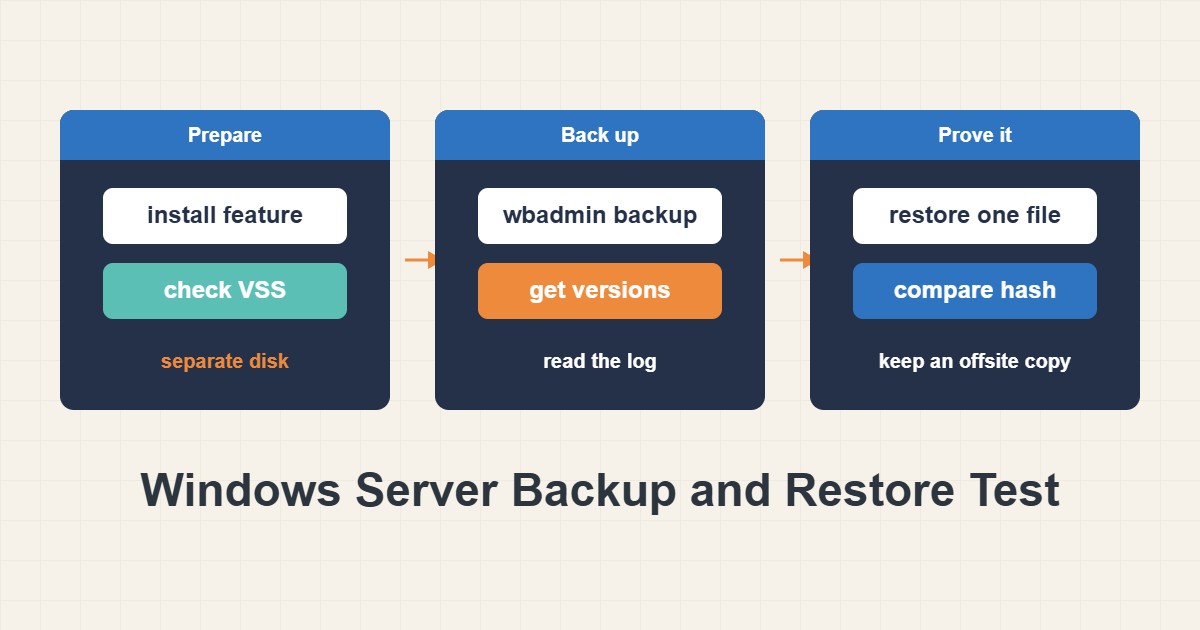
A Windows Server with no tested backup is a server whose recovery plan is hope. Windows Server Backup is built in, it uses Volume Shadow Copy for consistent snapshots, and the wbadmin command makes it scriptable. The difference between a backup and a good backup is a restore that you have actually tried. This guide shows how to install the feature, check that VSS is healthy, run a first backup to a separate disk, restore one file to a different folder as a test, read the log and schedule it without formatting the wrong disk.
1. Decide what you are protecting
Write down what the server holds: system state, application data, databases and file shares. Then decide how much data you can afford to lose, which sets the backup frequency, and how long you can be down, which sets how you will restore. A nightly backup of the system volume and the data volume is a reasonable start for a small server. Anything the server cannot rebuild from installation media or a vendor download belongs in the backup.
2. Install the feature and check VSS
Windows Server Backup is a feature, not a default install:
# Elevated PowerShell: install the feature, then check VSS writers
Install-WindowsFeature Windows-Server-Backup
vssadmin list writers
The second command lists the VSS writers. You want each writer to show a stable state and no last error. A writer in a failed state means applications such as databases or Active Directory may not be backed up consistently, so fix that first. It is a read-only check.
3. Run the first backup to a separate disk
The backup target must be a different disk or volume from the one you protect:
# One-time backup of C: and the critical volumes to a separate disk (E:)
wbadmin start backup -backupTarget:E: -include:C: -allCritical -quiet
This example backs up C: and the critical volumes needed for a full system recovery to disk E:. Change the letters to match your server. A backup stored on the same disk dies with that disk, so never use a volume that is part of the backup as the target. Check the free space first, because the first run is the largest. This is also the point to read cPanel Backups: Full Backup and Safe Restore for the same idea on hosting: a backup counts only after you restore from it.
4. List what was saved
Confirm that the backup exists and see its version identifier:
# List backups, then the items inside one version (copy the exact version id)
wbadmin get versions
wbadmin get items -version:10/17/2026-21:00
Copy the version identifier exactly as shown, because the format includes the date and time. The second command lists the items inside that version, so you can find the file you will use in the restore test.
5. Prove it with a test restore
Pick a file that does not change often, restore it to a different folder, and compare:
# Restore ONE file to a different folder, never over the original
wbadmin start recovery -version:10/17/2026-21:00 -itemType:File -items:C:\Data\report.xlsx -recoveryTarget:C:\RestoreTest\ -quiet
Get-ChildItem C:\RestoreTest -Recurse -File | Get-FileHash
Never restore over the original while testing. The restored file may appear under a folder structure inside the target, which is why the second command searches recursively. Compare its hash with the hash of the original file, as long as the original has not changed since the backup. For the full system, practice a bare-metal recovery on a spare virtual machine from the installation media at least once, because that is the situation you will face on a bad day.
6. Read the log after every run
A scheduled job that fails silently is worse than none:
# Read the backup log for errors
Get-WinEvent -LogName Microsoft-Windows-Backup -MaxEvents 20 |
  Format-Table TimeCreated, Id, LevelDisplayName, Message -AutoSize -Wrap
Look for warnings and errors from the last run. Common causes are a full target disk, a VSS writer in a failed state and a disk that went offline. Add a monitoring alert for failures, and see Verify MySQL Backups by Restoring Them for the same habit applied to databases.
7. Schedule it carefully
You can run the command from Task Scheduler:
# Nightly run through Task Scheduler (local disk E: as the target)
schtasks /Create /TN "Nightly wbadmin backup" /SC DAILY /ST 21:00 /RU SYSTEM /TR "wbadmin start backup -backupTarget:E: -include:C: -allCritical -quiet"
Be careful with the built-in schedule wizard and the wbadmin enable backup command. They dedicate the target disk to backups, which formats it and hides it from Explorer, so never point it at a disk that holds data. If the target is a network share, a new backup replaces the previous one there, and the account running the job needs rights on the share. In both cases, keep a second copy somewhere else.
8. Keep a copy outside the server
A second disk in the same rack is better than nothing, but a fire, a theft or ransomware that reaches the backup disk takes both. Copy backups to another location, such as an offline disk or remote storage, on a schedule. The common rule is three copies on two kinds of storage with one off-site, and it applies to Windows as much as to Linux.
9. A worked example
This example is illustrative, not a record of a real server. A file server has C: for the system and D: for data, plus a 2 TB disk E: for backups. You install the feature, check VSS, back up C: and D: to E: every night at 21:00, and on Friday you restore one document to a test folder and compare its hash. Once a month you copy the newest backup to an external disk that is not left connected. The first restore test reveals a missing share permission, which is exactly why you test.
10. Common mistakes
- Pointing a scheduled backup at a disk that contains data and losing it.
- Never restoring, so the first restore happens during an outage.
- Keeping the only copy on the same server or the same disk.
- Ignoring a VSS writer that is in a failed state.
- Treating shadow copies or RAID as a backup.
11. Frequently asked questions
Is Windows Server Backup enough? For a small server with simple needs, yes. Larger environments often use a dedicated product, but the same rules about testing and off-site copies apply.
Does it back up open files? It uses Volume Shadow Copy to take a consistent snapshot, so open files are handled, provided the VSS writers are healthy.
How long does a restore take? It depends on the amount of data and the target disk, so measure it in your test and write the number down.
Can I restore to different hardware? Bare-metal recovery to different hardware can work but needs the right drivers, so test it before you rely on it.
12. Quick checklist
- List what must be protected and set a backup frequency.
- Install Windows Server Backup and check the VSS writers.
- Back up to a separate disk and read the version list.
- Restore one file to a different folder and compare hashes.
- Read the backup log after each run and alert on failures.
- Schedule carefully and never format a disk that holds data.
- Keep a second copy outside the server and repeat the restore test.
If you need help reviewing performance or maintaining a server, see the server management services.
More server and WordPress guides are collected in the article archive.
Official references
Microsoft Learn: wbadmin start backup · Microsoft Learn: wbadmin start recovery · Microsoft Learn: vssadmin